
Documentation comparison · Oct 17, 2026
Workflow documentation software vs screen recording: which fits your SOP?
Choose the format that helps a reader complete and verify the task, then keep the source easy to review when the interface changes.
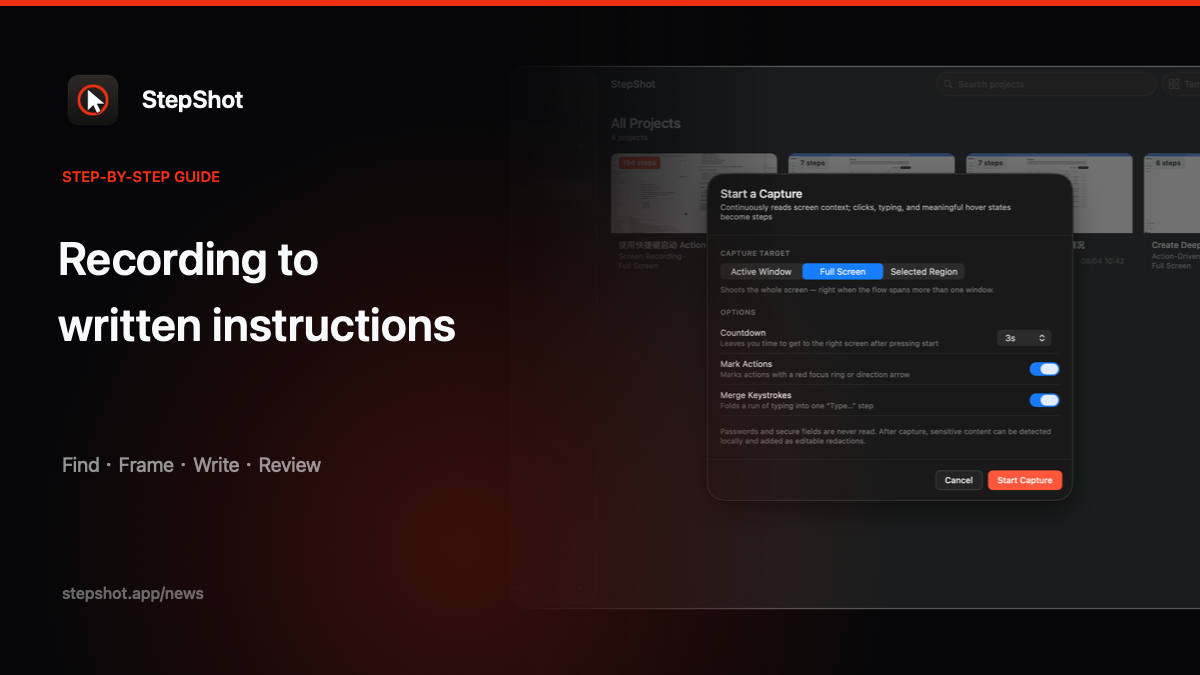
Screen recording and workflow documentation software both start with real activity on a computer, but they produce different evidence for the person who must follow the procedure. A recording preserves timing and context. A documentation workflow turns selected actions into searchable steps with captions, screenshots and checkpoints. The right choice depends on the reader, the task and how often the procedure will change.
Start with the reader's moment
Use a screen recording when timing, sequence or visual movement is the thing a learner needs to observe. A short recording can show a gesture, a transition or the relationship between several windows without requiring the author to describe every frame. It is also useful as raw evidence during review. Its weakness is that readers must pause, rewind and remember where they were, and a long recording can hide the one decision they need.
Use written workflow documentation when a reader needs to scan a prerequisite, find one step, compare an expected result or return to the procedure later. A searchable document can make roles, inputs, decision points and stopping conditions explicit. It is less helpful when the important information is continuous motion, so do not force a complex visual demonstration into captions alone. A hybrid can work when the document is authoritative and the recording supplies optional context.
Compare evidence, not polish
For either format, capture the normal path from a known starting state. Record the visible result after important actions and test the permission, error and branch cases that readers are likely to encounter. Do not turn an inferred transition into an instruction just because the cursor moved in the recording. Ask a first-time reader to complete the task and note where they stop, guess or ask for help. The first-time reader test is a practical review loop for a recording, a document or both.
Plan for maintenance and access
A recording is quick to share, but a changed label or permission can make its guidance ambiguous. A document is easier to search and annotate, but each screenshot and sentence still needs an owner and a review trigger. For both, record the source project, test date, expected result and publication location. Replace stale copies where readers actually find them; an updated source does not update an attachment or embedded video by itself.
Review privacy before distribution. Inspect the frame or screenshot, captions, filenames and links for credentials, customer data and internal URLs. Use safe sample data, redact locally when needed and check the exact exported artifact. A viewer's access to the recording or document is part of the procedure: confirm that the recipient can open the file and reach the software account required for the task. See the workflow screenshot privacy checklist for an export-boundary review.
Choose a source you can verify
Workflow documentation software is a good fit when the deliverable needs editable steps, structured headings and more than one output format. Screen recording is a good fit when motion or a long visual context carries the explanation. The decision is not about which category is universally better; it is about which artifact a reader can verify and an owner can keep current.
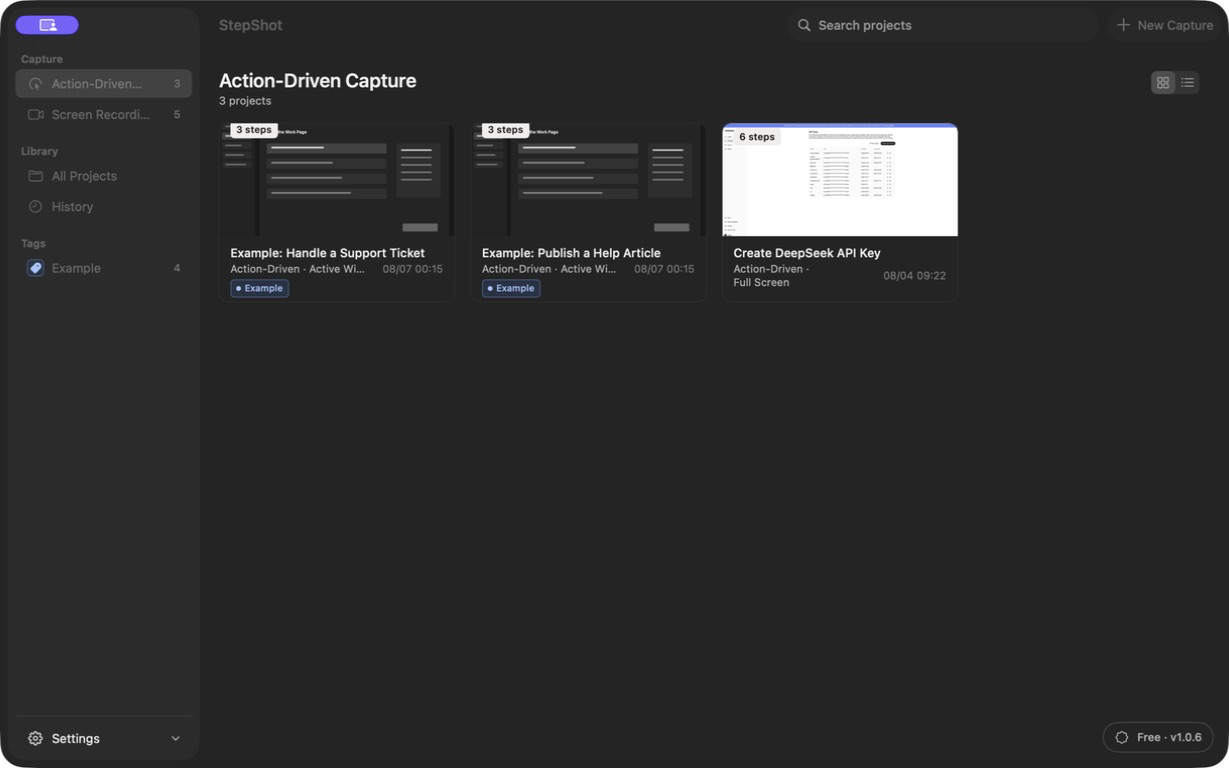
StepShot for macOS 14 and later captures real operations or a screen recording, then lets the author edit steps, screenshots, headings, annotations and redactions locally. A reviewed project can export to PDF for paid licenses, or to Markdown and self-contained HTML within the applicable plan limits. Optional cloud optimization uses a user-configured OpenAI-compatible endpoint and sends text semantics by default; visual samples require separate consent after local sanitization. It does not install interactive overlays in another application. Read the capture guide before choosing the source format for your SOP.