
Documentation privacy · Oct 15, 2026
Workflow screenshot privacy: check every export boundary
A clean-looking screenshot is not the same as a safe guide. Review what was captured, what remains in the editable source, and what the recipient actually receives.
Map the path from screen to reader
Before recording an internal procedure, write down who will follow the guide and where the final file will live. A support teammate with access to a private knowledge base has a different need from a public help-page visitor. The same workflow can expose account names, customer records, notification previews, browser tabs or internal addresses that the reader does not need.
Start in a test account or prepared workspace when possible. Close unrelated windows, remove unnecessary personal data and narrow the capture to the task. This reduces the amount of sensitive material that later needs review, but it does not replace inspection of the saved steps.
Inspect the editable project, not just the visible frame
Walk through each captured step at full size. Look beyond the highlighted button: inspect navigation, sidebars, titles, entered values and background windows. Review captions and notes as carefully as pixels. A description can repeat a secret even when its screenshot has been covered.
Decide whether each piece of context is required to complete the procedure. Remove an irrelevant step, crop to the meaningful interface or redact the specific sensitive region. Keep enough surrounding UI for the reader to recognize the correct control. If the crop hides a warning or changes the meaning of an action, capture a safer example instead.
Treat redaction suggestions as a review queue
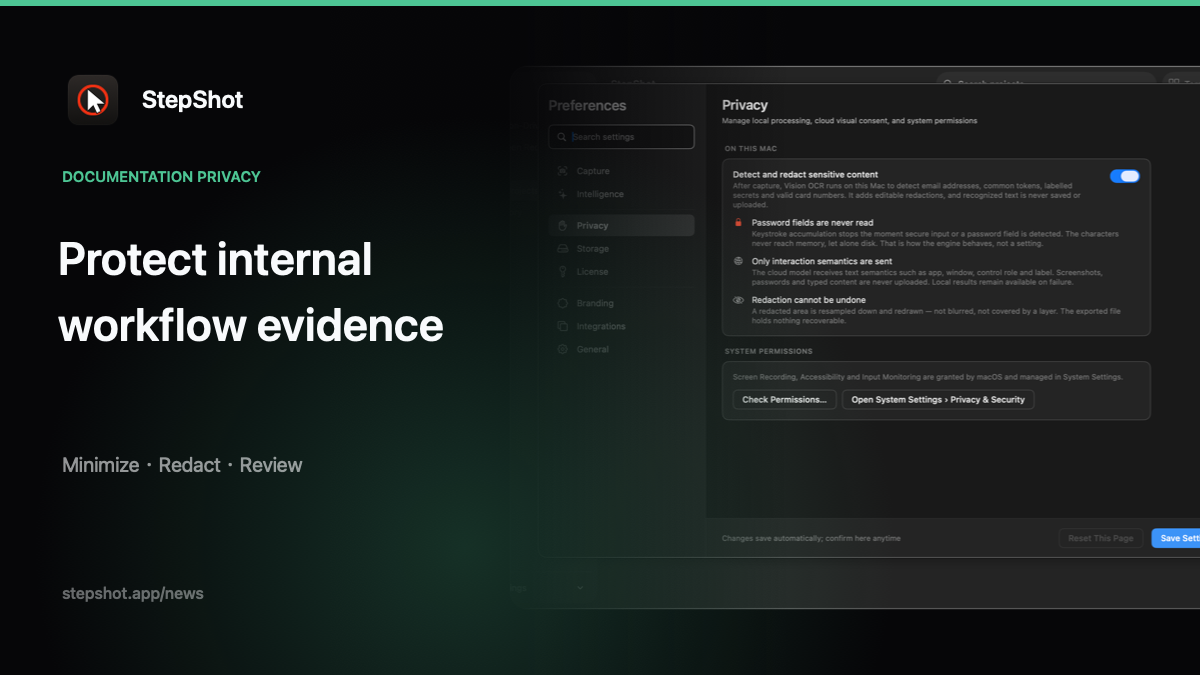
Automated candidates can help locate likely sensitive text, but they cannot know every organization's confidential field or infer the policy for every recipient. Check the proposed regions and add manual coverage for identifiers, tokens, names or values the detection missed. Then inspect every affected frame after applying the marks. Do not assume a suggested region is complete merely because it was detected.
Check the boundary created by the file format
Export a candidate and open that exact file as a reader would. In PDF, inspect pages at readable size and check whether headers, footers or page breaks reveal context. In Markdown, inspect both the text file and its companion image folder; sharing only one part can break the guide, while sharing the whole folder may include more images than intended if the destination was assembled manually. In self-contained HTML, screenshots are embedded in the file, so the file itself must be handled as sensitive material.
Search the exported text for names and identifiers, inspect every included image and verify that links lead to the intended audience's destination. A successful export only confirms that a file was produced. It does not approve the contents or the permissions of the place where it will be published.
Separate local work from optional cloud review
StepShot for macOS 14 and later captures, edits and exports locally by default. Its optional cloud planner uses an author-configured OpenAI-compatible endpoint and sends text semantics by default. A separate, default-off consent can attach locally sanitized visual samples. If a workflow is too sensitive for that destination, leave cloud assistance off and review the guide locally. Neither local sanitization nor redaction suggestions eliminate the need for human inspection.
For the product controls, see the StepShot features and documentation. The local redaction guide covers the review sequence in more detail. Before handing off the file, record its intended audience, owner, access location and next review trigger. Recheck those boundaries whenever the underlying workflow or its recipients change.