
Step-by-step guide · Aug 26, 2026
How to turn a screen recording into written instructions
A screen recording preserves the flow of a task, but readers still need concise actions, clear screenshots and checkpoints they can follow at their own pace.
Start with the result readers must reach
Before reviewing the recording, write down the task's starting state and successful outcome. “Configure notifications” is vague; “disable email notifications for one project and confirm the setting is saved” gives the guide a boundary and a final check. It also makes it easier to discard navigation, waiting and corrections that do not help a reader reproduce the result.
Record prerequisites separately. Required access, sample data and environment choices belong before the first action, not buried inside a caption after the reader is already blocked.
Find actions, not equal time intervals
Do not turn every few seconds of video into a step. A useful step begins when the operator makes a meaningful choice: selecting a menu item, entering a value, confirming a dialog or checking an outcome. Mouse travel, loading pauses and accidental detours are evidence in the recording, but usually noise in the written procedure.
Watch for state changes that do not involve a click. A menu that appears after a hover, a completed upload or a validation message may deserve its own frame because it proves the previous action worked. Keep decision points explicit when different inputs lead to different next actions.
Choose the frame that proves each instruction
The click frame is not always the clearest screenshot. For a dropdown, use the frame where the choices are visible. For a form submission, the useful frame may be the success state immediately afterward. Select the smallest window or region that includes the control, its relevant context and the result without exposing unrelated information.
Crop consistently and keep interface landmarks visible. Tight framing can make a control readable, but a crop with no navigation or page identity leaves readers unsure where they are. Use annotations sparingly to identify the exact control rather than covering the interface with explanation.
Write instructions that stand without narration
Give every step one observable action and use the interface label the reader will actually see. “Select Notifications” is stronger than “go to the next section.” Add a brief reason only when it changes the decision, and describe the expected state when success is not obvious.
Remove spoken filler and details that depend on the video timeline, such as “as you can see here” or “wait a moment.” Written instructions are scanned out of order, so captions and headings must remain understandable without audio or playback context.
Review privacy and recover missing evidence
Inspect every selected frame for personal data, account names, notifications, tokens and internal URLs. Redact sensitive pixels before publishing and verify the exported artifact, not only the editor view. If a necessary state was missed, return to the recording and select a better frame instead of describing evidence the guide does not show.
Test the guide as a document
Ask a reviewer who did not perform the recording to follow the instructions from the stated starting point. Note every hesitation, missing prerequisite and mismatch between text and screenshot. Then test links, image legibility and page breaks in the actual delivery format. A guide is complete when another person can reach and verify the outcome, not when every moment of the recording has been transcribed.
How StepShot supports the workflow
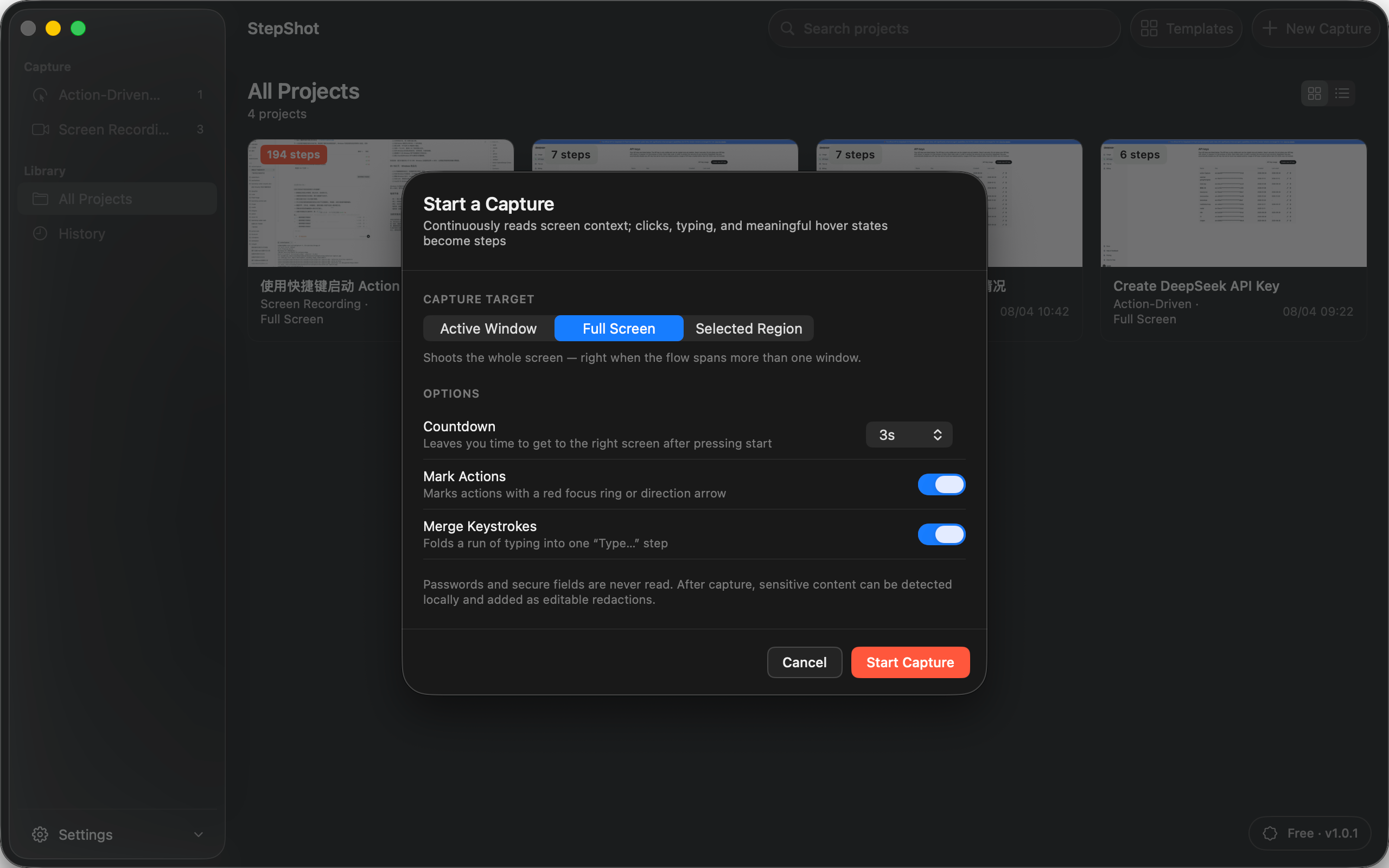
StepShot for macOS 14 and later supports action-driven and screen-recording capture modes. Both retain recording evidence. In the editor, authors can play the recording, move along its timeline and use video frames to create or repair steps. Steps remain editable and can be reordered, merged or supplemented with notes and headings.
Capture, editing and export run locally by default. Authors can review redaction candidates before exporting to PDF, Markdown or self-contained HTML. The optional OpenAI-compatible planner uses text semantics by default; sending up to four locally sanitized visual samples requires separate, default-off consent.
Explore the StepShot feature set, read the capture guide, or compare a screen recording alternative for SOPs.