
Documentation privacy · Oct 8, 2026
Local redaction before sharing workflow screenshots
A useful screenshot can still expose an account, customer or internal system. Redact sensitive pixels locally, then review the exact guide that will leave your team.
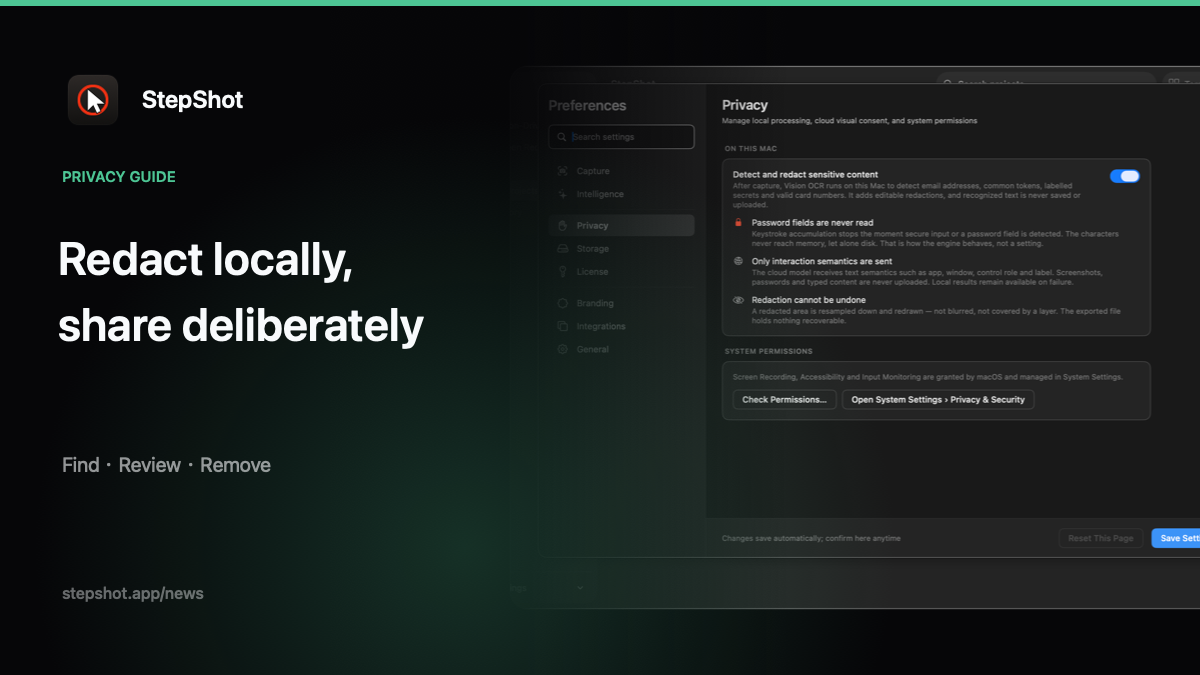
Redaction is not a final decoration. It is a decision about what evidence a reader needs and what information the recipient does not need to see. Make that decision before publishing a workflow, and keep the source, review and delivery boundaries explicit.
Start with the recipient and the minimum evidence
Write down who will receive the guide and where it will live: an internal runbook, a support article, a training handout or a public page. The same screenshot may be acceptable for one audience and excessive for another. List the visual landmarks a reader needs to identify the correct screen, then remove incidental names, account identifiers, internal URLs, tickets and notifications.
Use representative test data when the task does not require a real account. Close unrelated windows and tabs, silence notifications and choose the narrowest capture area that still preserves the action and its result. A smaller frame is helpful, but it is not automatically safe if it hides the environment or permission context a reader must verify.
Redact before an optional cloud handoff
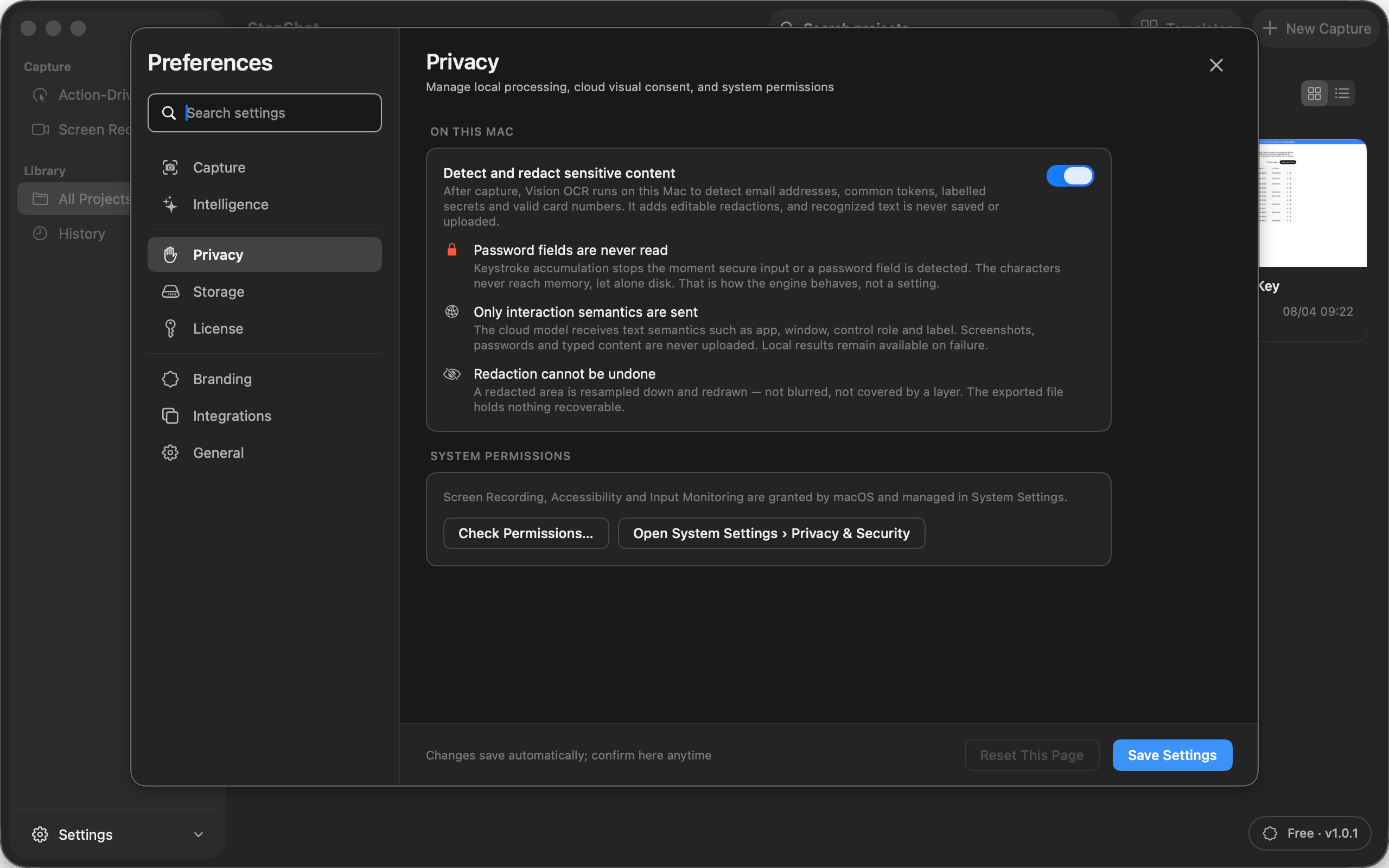
Keep the first privacy boundary local. If a screenshot may contain sensitive material, apply an irreversible redaction before attaching it to a document or sending it to a service. Do not treat a blur, an overlay or a crop as proof that the original pixels cannot be recovered from the project or export.
Local OCR can help identify likely sensitive regions, but a suggestion is not a guarantee. Review every candidate, add missed regions and confirm that the rendered result actually obscures the text or image underneath. Check annotations, captions, filenames and the document cover as well as the screenshot itself.
Review the complete editable project
Before exporting, inspect duplicate, skipped and replaced steps. An old image can remain in an editable project even when it is absent from the selected sequence. Search step titles and descriptions for identifiers that were visible in an earlier frame. If another person will maintain the guide, leave a short review note explaining what was redacted and why, without copying the sensitive value into the note.
When the workflow changes, repeat the review. A redaction that covered a customer name in one layout may miss it after a window resize or a new dialog. Treat approval as specific to the captured version, audience and destination.
Inspect the exact file you will distribute
Open the final PDF, Markdown output and image folder, or the self-contained HTML file, rather than relying only on the editor preview. Check each image at readable size, verify the first and last exported step, and confirm that the selected range matches the approved scope. If the destination is a knowledge base, check access settings separately from the document.
Keep the editable source for future corrections, but share only the reviewed output. Do not assume that a private source folder makes a copy in a ticket, email or chat private too.
Use StepShot with explicit privacy boundaries
StepShot for macOS 14 and later captures an active window, full screen or selected region. Capture, editing and export are local by default, and the app does not read password characters. Its local Vision OCR can suggest sensitive regions without saving or uploading recognized text, but authors must review the candidates and the final artifact.
Optional cloud optimization uses an endpoint configured by the user and sends text semantics by default. A separate, default-off consent can attach up to four locally sanitized visual samples. Enable that only after assessing the provider and the material involved. For the product controls, read the redaction guide, the internal screenshot checklist and the StepShot features overview.