
Documentation privacy · Sep 17, 2026
Workflow documentation privacy threat model
A useful threat model does not begin with a list of security features. It begins with the information a workflow can expose, where that information travels and who can see the finished guide.
Workflow documentation records more than a sequence of clicks. Screenshots can reveal customer records, account names, internal URLs, permissions and the structure of private tools. Step titles may expose the same context even when an image is cropped. A privacy threat model helps a team decide what to capture, what to remove and what controls must survive into the exported document.
This does not need to become a large security exercise. For one procedure, a short review of assets, boundaries, readers and failure modes is enough to replace vague promises with decisions an author can test.
List the information worth protecting
Start with the workflow itself. Identify personal data, credentials, customer content, financial details, private URLs, tenant identifiers and organization-specific settings that may appear. Include information outside the main task, such as browser tabs, notifications, menu-bar items and records visible behind a dialog.
Then classify the procedure. A public product tutorial has a different exposure limit from an internal payroll process. The classification should determine which data may appear, who must review it and where the result may be stored.
Draw the documentation boundaries
Trace the document through capture, editing, optional AI processing, export and delivery. At each boundary, record what crosses it. A screenshot stored in a local project is different from text semantics sent to a configured model provider, and both differ from a PDF attached to a support ticket.
Do not treat “AI enabled” as one boundary. Ask whether the service receives text, images or both; how samples are selected; and whether visual sharing has separate consent. Record the endpoint and the person responsible for checking its data terms. If the answer is unknown, keep the material on the local path.
Name realistic failure modes
Use concrete events rather than broad labels such as “data leak.” A full-screen capture includes a private notification. Automatic detection misses an internal identifier. A redaction remains an editable overlay instead of becoming pixels in the output. An author reviews the project but distributes an older export. A cloud visual option is enabled without checking which frames it selects.
For each event, note a preventive control and a verification step. Narrow capture scope prevents unrelated desktop exposure; opening the final file verifies the actual export. Manual review catches organization-specific secrets that a generic detector cannot know. Versioning and a named approver reduce the chance that an unreviewed file is distributed.
Reduce exposure before relying on redaction
Prepare representative test data, close unrelated windows and choose the smallest capture target that still explains the task. Remove duplicate steps and crop unnecessary context. These choices reduce the number of sensitive pixels that later controls must find.
Redaction remains necessary when sensitive context and useful evidence occupy the same frame. Confirm every proposed region, add missed areas manually and use an irreversible treatment in the rendered output. Detection is a review aid, not proof that a document is safe.
Review every deliverable and destination
Inspect the actual PDF, Markdown image set or HTML file, not only the editor. Check images at full resolution, search visible text and confirm that captions do not repeat information removed from screenshots. Then verify the audience and destination: a file approved for a restricted knowledge base may not be suitable for a public help center.
Repeat the threat review when the workflow, sample data, model provider, output format or audience changes. The controls belong to a particular publication decision, not permanently to the source project.
Apply the model in StepShot
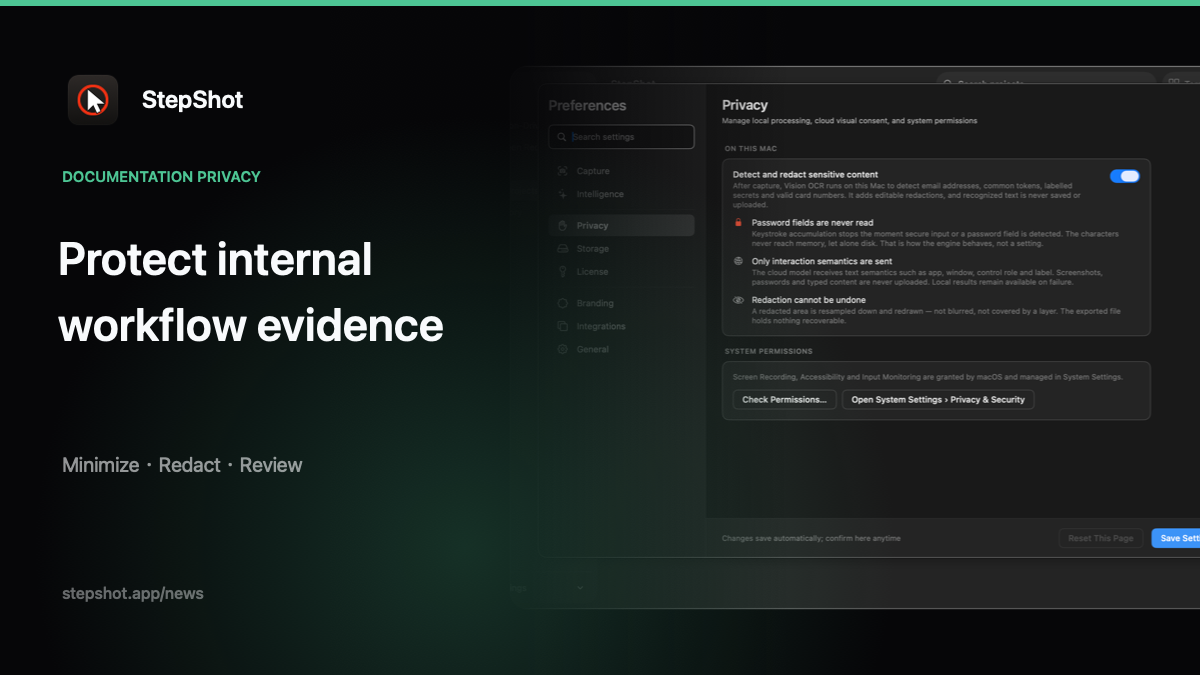
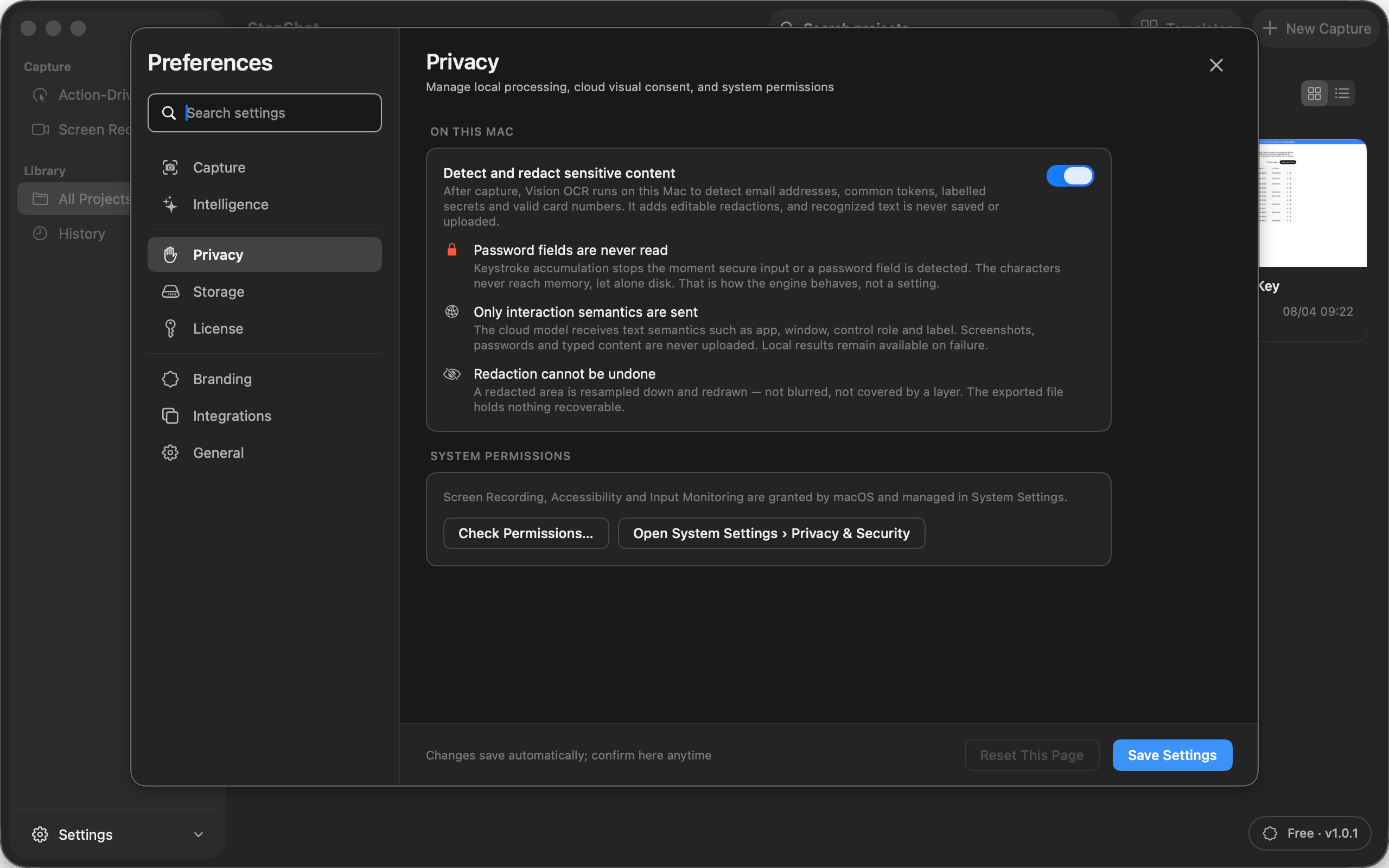
StepShot for macOS 14 and later keeps capture, editing and export local by default. Password characters are never read. Local Vision OCR can propose redaction regions without saving or uploading recognized text, and incomplete automatic-redaction review blocks export. Authors still need to inspect each candidate and the finished file.
Optional OpenAI-compatible optimization sends text semantics by default. Sending up to four locally sanitized visual samples requires a separate, default-off setting; the samples are re-encoded after password areas and confirmed redactions are pixelated. A cloud failure leaves the complete local draft intact.
Use the redaction guide to review sensitive frames, read the broader documentation privacy checklist, or compare the documented controls on the StepShot features page.