
Documentation privacy · Aug 25, 2026
Documentation privacy checklist for internal tools
Internal workflow documentation often needs real interface evidence. A useful privacy process reduces what is captured, removes sensitive details locally and keeps a person responsible for the final output.
1. Define the audience and destination first
Before recording a task, decide who will receive the guide and where it will live. A public help article, an internal knowledge base and a restricted incident procedure have different disclosure boundaries. Record the owner, intended readers and approved destination so reviewers can judge each screenshot and instruction against a concrete use case.
Do not collect extra evidence simply because it may be useful later. A narrow guide is easier to review, easier to maintain and less likely to expose unrelated information.
2. Prepare a low-risk working state
Use test records or deliberately prepared examples when they accurately represent the procedure. Close unrelated windows, clear notifications and remove customer names, email addresses, tokens, private URLs and internal identifiers from the visible workspace. Select the smallest capture target that still proves the action: a single window or fixed region usually reveals less than a full desktop.
Password fields need special treatment. A documentation tool should not read or store password characters, but the surrounding page can still reveal an account name, tenant or recovery detail. Inspect the whole frame, not only the control being used.
3. Minimize stored and transmitted content
Document the task from the evidence required to explain it. Avoid retaining duplicate screenshots, abandoned takes or recordings with no operational purpose. Keep project files and exports in approved local folders, and apply the organization's existing access and retention rules to those files.
If AI editing is optional, treat text semantics and visual samples as separate disclosures. Confirm which provider receives data, what is sent and whether the improvement is worth that transfer. A cloud feature should not be required to create a complete local draft, and enabling text optimization should not silently enable screenshot upload.
4. Redact locally and verify the pixels
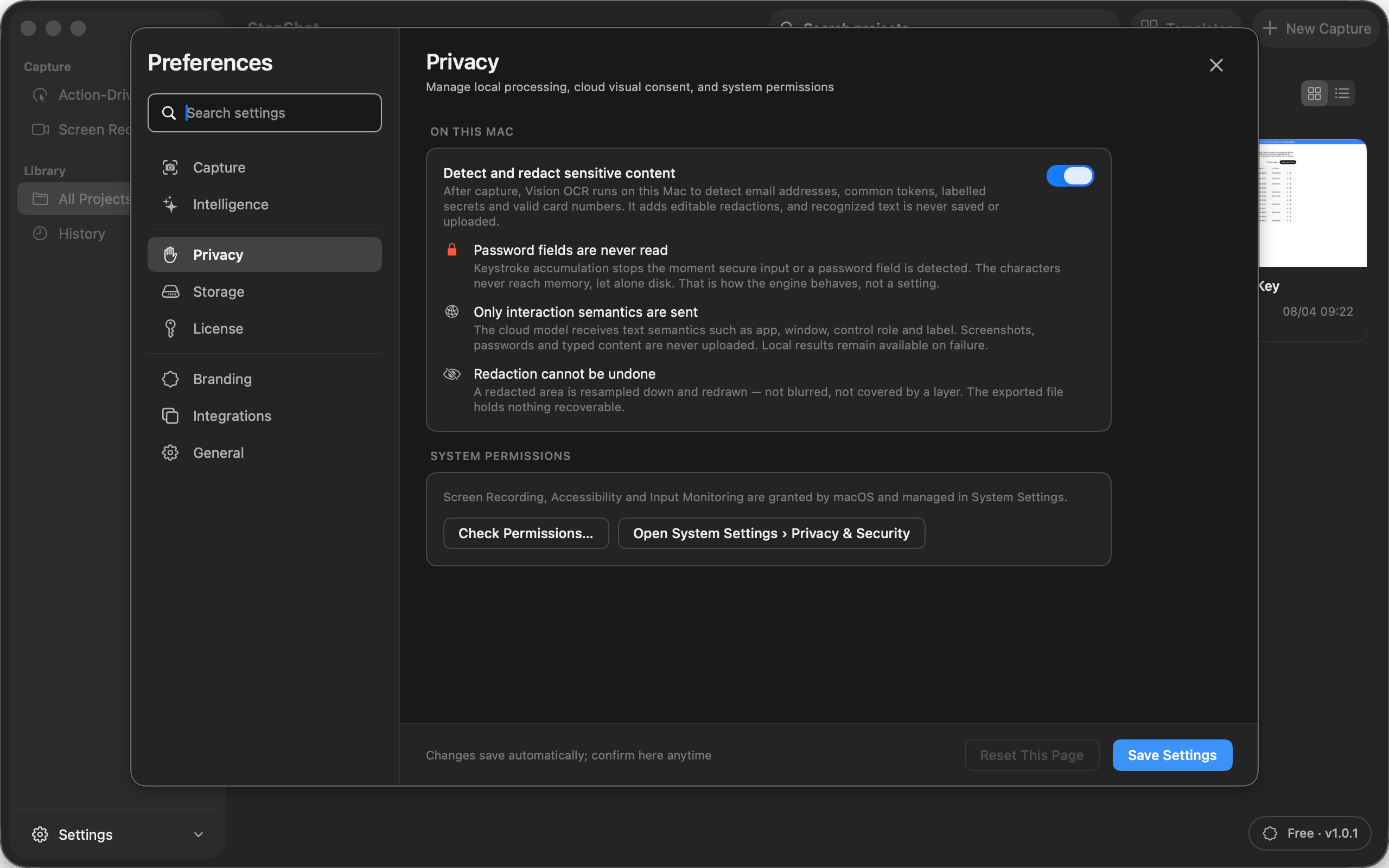
Search every captured frame for personal data, credentials, access tokens, customer records and confidential business information. Automated detection can propose regions, but it cannot understand every organization-specific identifier or decide whether the context is safe. Add manual redactions where needed and require review before export.
Redaction should be irreversible in the published image. A translucent rectangle or removable annotation can leave the original pixels recoverable. Open the finished PDF, Markdown images or HTML file and confirm the sensitive pixels are gone in the artifact that recipients will actually receive.
5. Review instructions as well as screenshots
Privacy leaks also appear in text. Check titles, captions, filenames, links, example values and copied error messages. Remove internal hostnames and query parameters unless readers genuinely need them. Confirm that skipped steps do not hide a privacy or authorization warning and that the guide does not tell readers to bypass normal access controls.
6. Approve the final sharing path
Export only the required steps and choose a format appropriate for the destination. Test the exact file, not only the editor preview. Verify that links point to approved locations, metadata contains no sensitive project name and the receiving system has the intended permissions. Assign an owner and a review trigger so the guide is checked after interface, policy or access changes.
How StepShot supports this checklist
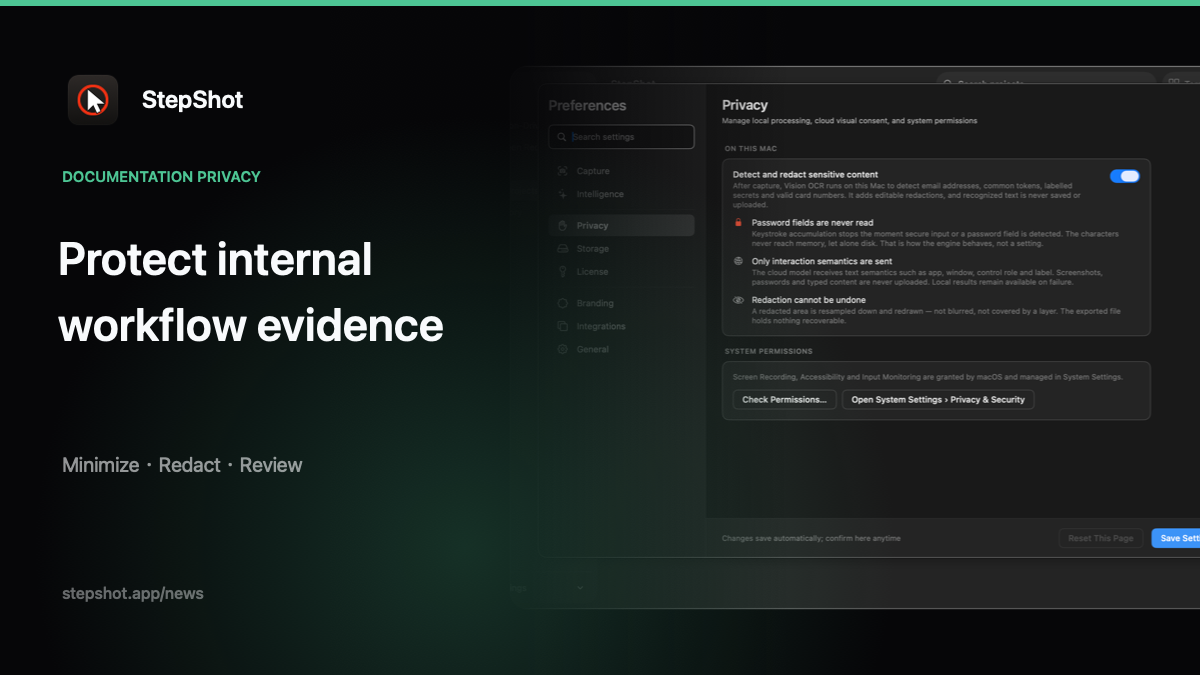
StepShot for macOS 14 and later captures, edits and exports workflow documentation locally by default, with no product telemetry. Password and secure-input characters are not read or saved. On-device Vision OCR can create editable redaction candidates for common sensitive patterns; detected text is neither saved nor uploaded, and unresolved automatic candidates block export and sharing.
The optional OpenAI-compatible planner is configured with the user's own endpoint and API key. It sends text semantics by default. A separate default-off consent can attach up to four visual samples after automatic and manual redactions and password regions are irreversibly pixelated and the images are re-encoded locally. Authors remain responsible for checking the resulting PDF, Markdown or self-contained HTML.
Review the full StepShot feature set, follow the redaction workflow, or read more about local-first workflow documentation.