
PDF training guide · Aug 22, 2026
From workflow capture to a PDF training handout
A useful PDF training handout is not a transcript of every click. It is a tested path through a real task, with enough visual evidence for a learner to act and enough structure for a trainer to review, print and maintain it.
Start with one observable training outcome
Define what the learner should complete, where they begin and what proves success. “Learn the admin panel” is too broad. “Add a team member and confirm the invitation state” gives the handout a boundary and a visible result.
List prerequisites before recording: the required role, sample data, application version and any permission that changes the path. Keep policy choices outside the click sequence. A trainer should be able to update an approval rule without rebuilding screenshots that still describe the interface accurately.
Capture the task in a safe, realistic environment
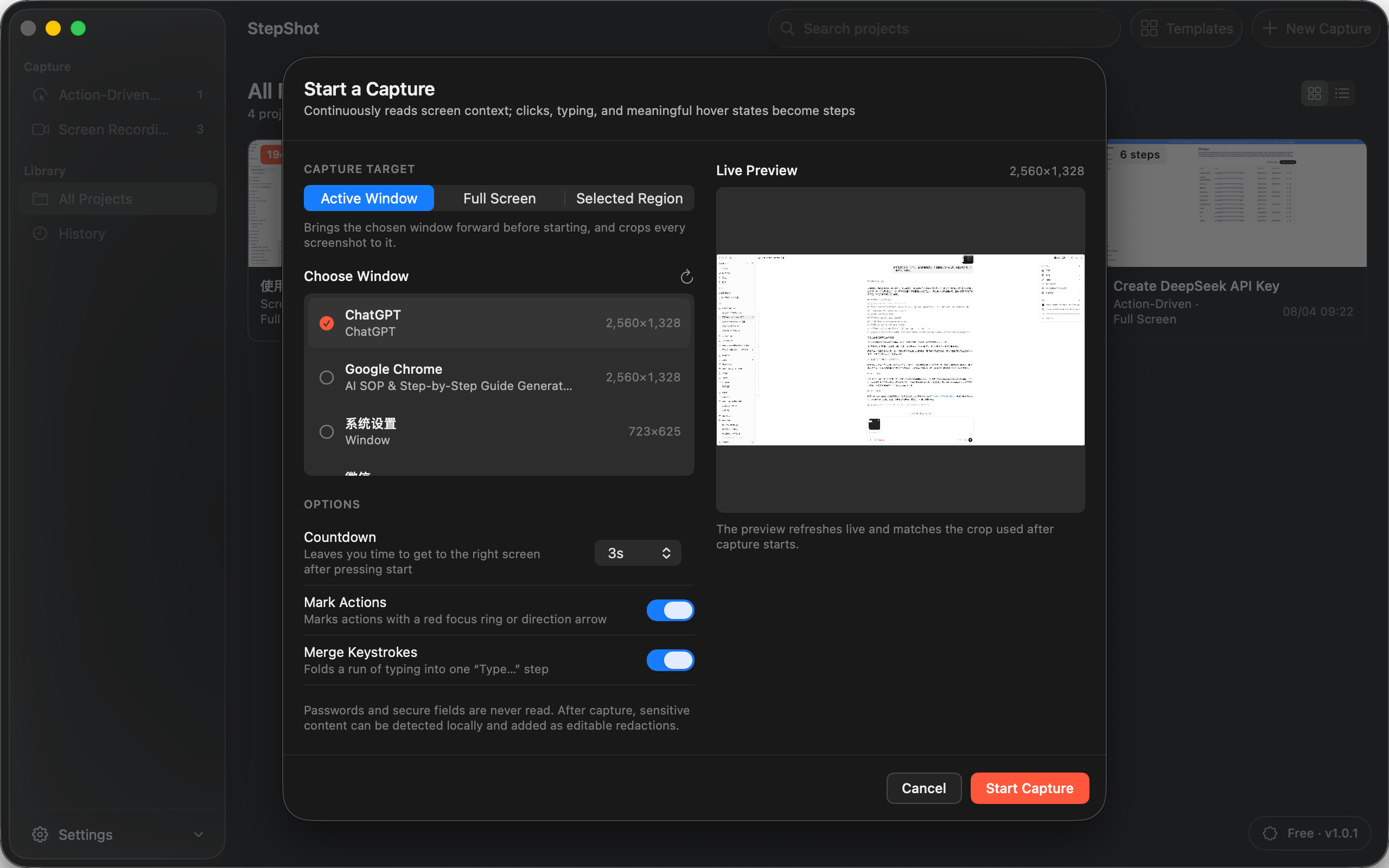
Perform the workflow from its stated starting point, using representative but non-sensitive data. Capture actions in order and include the intermediate state only when it helps a learner decide what to do next. Repeated clicks, exploratory detours and corrections belong in the recording evidence, not automatically in the finished handout.
Pause after important transitions. Menus, permission prompts and confirmation states often disappear quickly, yet they may be the evidence a learner needs most. If the task has branches, capture the standard path first and document exceptions in labeled notes rather than mixing every outcome into one sequence.
Edit for action, evidence and scanning
Give every retained step a direct action and an observable result. Crop screenshots around the relevant context, but leave enough of the interface visible for orientation. Use a click marker, arrow or numbered annotation only when it resolves ambiguity; decoration that does not change a decision makes the page harder to scan.
Group longer procedures with section headings and insert notes for prerequisites, warnings or choices. Skip duplicate and low-value steps, then check that numbering and references still make sense. The handout should remain understandable without a trainer narrating missing transitions.
Complete the privacy review before layout approval
Inspect names, email addresses, account identifiers, internal URLs, tokens and background windows in every retained image. Crop unrelated regions and apply irreversible redaction where necessary. Automated detection can identify candidates, but a person still needs to confirm each region and inspect the final pixels.
Use synthetic training data when practical. Redaction is a last-mile safeguard, not permission to capture production data without a reason. Also verify that passwords and recovery codes are absent from both screenshots and written instructions.
Choose a PDF layout for the way people will use it
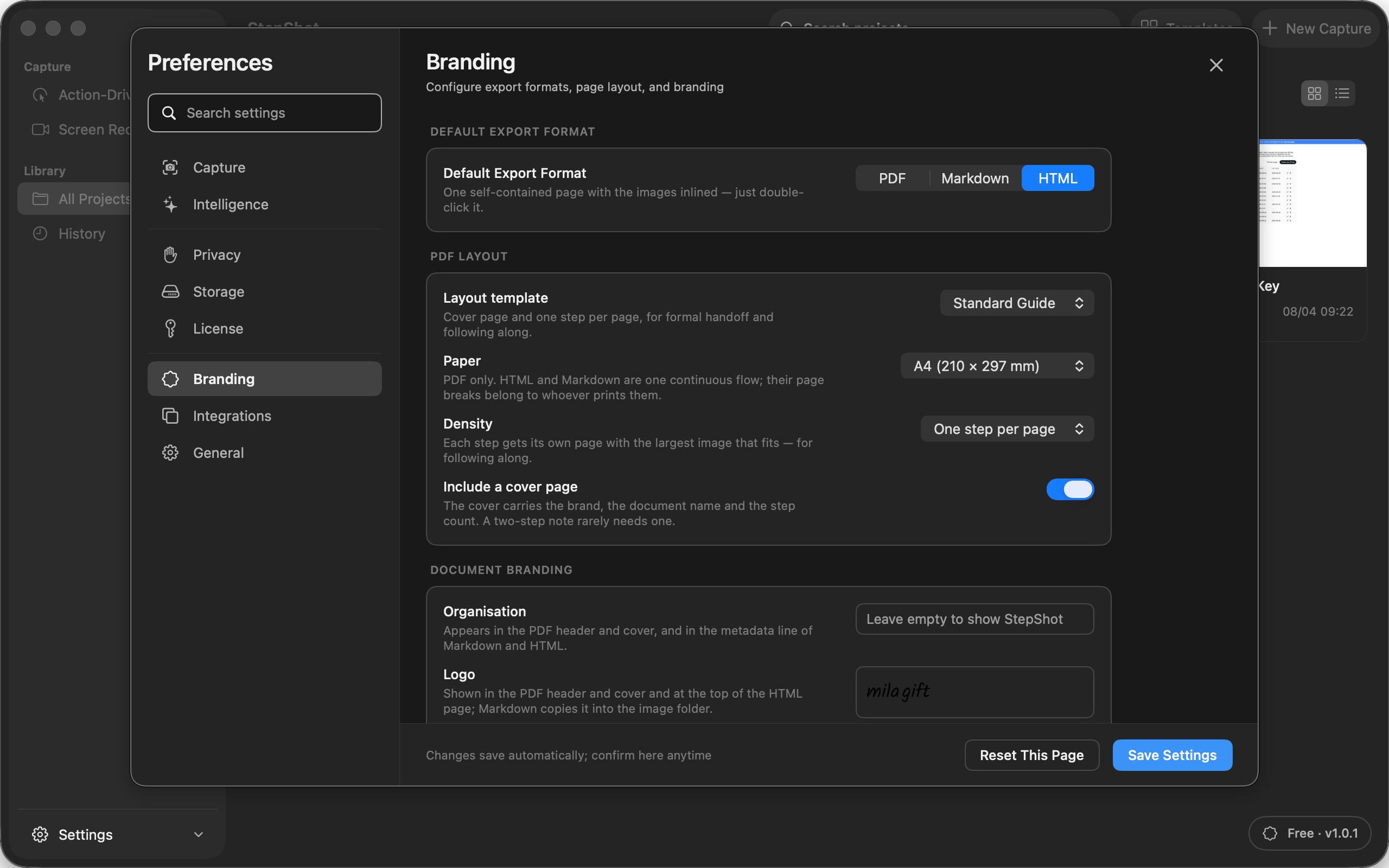
A page-per-step layout gives each screenshot room and works well for guided training. A compact layout reduces page count for experienced operators who need a quick reference. Choose A4 or Letter for the destination, decide whether a cover and page furniture add useful ownership, and keep branding subordinate to the procedure.
Test the finished handout as a learner
Open the generated PDF at normal reading size and print one representative section if paper use matters. Check image legibility, page breaks, headers, footers, links and the transition between sections. Then ask someone who did not author the guide to complete the task from the stated prerequisites. Any verbal rescue identifies a missing instruction or assumption.
Record the review date and the software state tested. Keep the editable source so a later interface change can be handled with scoped recapture instead of rebuilding the handout from scratch.
How StepShot supports PDF training handouts
StepShot for macOS 14 and later turns a real workflow into an editable local draft. Authors can reorder, merge, skip or restore steps, insert notes and section headings, adjust framing and annotations, and review proposed local OCR redactions. Its PDF preview uses the same exporter as the final file, so page and branding decisions can be checked before export.
PDF export and custom branding are Pro and Team features. The Free plan supports unlimited capture and editing and exports the first 10 captured steps in its available formats; compare the exact limits on the pricing page. Explore StepShot features, follow the export guide, or read why SOP tools benefit from PDF, Markdown and HTML output.