
Step-by-step guide · Sep 9, 2026
Step-by-step guide generator: choose the right capture mode
A useful step-by-step guide starts with the right evidence. Choose a capture mode by considering how predictable the task is, what may need repair and how much screen content should be retained.
Start with the document readers need
Do not choose a capture mode because one sounds more comprehensive. Begin with the finished guide. A short, repeatable task may need only the meaningful clicks and inputs. A fragile workflow with hover menus, delayed results or several possible branches may benefit from a continuous recording that preserves more evidence.
Both approaches should produce editable steps rather than asking readers to scrub through a video. The difference is how much source material the author retains while building those steps.
Use action-driven capture for a predictable path
Action-driven capture suits a workflow whose important moments are clicks, keyboard actions and visible state changes. Each meaningful action becomes a candidate step while repeated or low-value events can be skipped. The result is a compact draft with less material to review.
This is a good default for a stable settings change, a routine approval or a short support procedure. Before recording, define the starting state and expected result. During review, confirm that every instruction matches the screenshot taken around that action and restore any skipped step that readers need.
Use continuous recording when recovery matters
Continuous recording is useful when the correct frame may not coincide neatly with a click. A menu may appear after a pause, a drag may reveal its result only when released, or an application may take time to finish an operation. Retaining the recording gives the author another chance to select evidence after the workflow is complete.
In StepShot, recording capture still creates document steps during the task. In the editor, the recording can be replayed and used to add a step from the current frame, replace a selected screenshot, split a step or merge adjacent steps. It is a repair source for the guide, not a traditional video-editing timeline with narration and transitions.
Limit the capture target
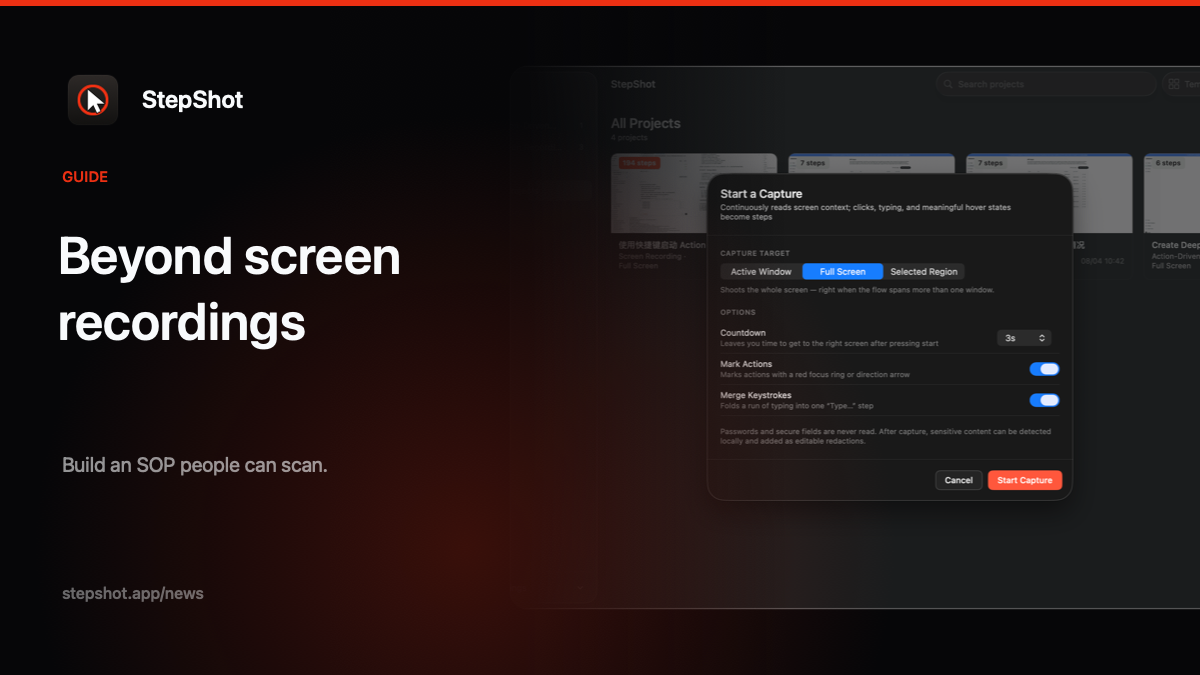
Choose the smallest target that still proves the task: the active window, the full screen or a selected region. A narrow target reduces unrelated notifications, account details and background applications in the source material. It also makes the relevant control easier to see in the finished instructions.
Review privacy before export regardless of the mode. Password and secure-input characters should never become documentation content, but names, email addresses, identifiers and confidential page content can still appear visually. Crop unnecessary context, apply irreversible pixel redaction where needed and inspect the exported artifact.
Plan for editing, not automatic perfection
A step-by-step guide generator should reduce mechanical work without hiding authorship. Reorder instructions, merge actions that belong together, add headings or notes and mark steps that should not be exported. Verify click markers, annotations and framing against the real application state.
Use the recording only as long as it helps resolve uncertainty. Keeping more source evidence also means reviewing and protecting more material. When the workflow is simple and repeatable, action-driven capture usually keeps the review surface smaller.
A practical selection rule
Choose action-driven capture when the path is stable and meaningful actions clearly define the procedure. Choose continuous recording when timing, hover states, drags or uncertain outcomes make later frame recovery valuable. For either mode, run the task once from a known starting point, edit the generated steps, check sensitive content and test the final guide with a reader.
StepShot for macOS 14 and later supports both capture modes across active-window, full-screen and selected-region targets. Capture, editing and PDF, Markdown or self-contained HTML export run locally; optional cloud planning is not required for the workflow. See the feature overview, capture guide, editor guide and export documentation for current behavior and limits.