
Screenshot privacy · Sep 24, 2026
How to share internal workflow screenshots safely
The screen around a task can reveal more than the task itself. Limit what enters the capture, then check the exact file your readers will receive.
An internal screenshot may show a perfectly useful instruction alongside a customer name, a browser tab, an account switcher or a notification. Cropping after capture can help, but it cannot undo a recording already shared with the wrong audience. A safer workflow starts before the first step and ends only when the exported file has been inspected.
Decide who needs the guide
Write down the intended audience and destination first. A restricted support runbook can contain context that does not belong in a public help article. Decide which labels are necessary for the reader to identify the correct screen and which identifiers are incidental. If a real account is not necessary, perform the walkthrough with representative test data instead.
Ask the workflow owner whether a screenshot may include names, account IDs, internal URLs or permission settings. Do not assume a label is harmless just because it is not a password. A combination of ordinary details can identify a customer, tenant or internal system.
Make the capture area intentional
Close unrelated tabs and windows, silence notifications and move private material out of view. Capture an active window or a selected region when it preserves enough context for the instruction; choose full screen only when the desktop itself matters. Check what appears at the edges of dialogs and menus, since an overlay can expose the application behind it.
For each step, retain the landmarks a reader needs: the page title, relevant navigation and the control being used. Narrower is not automatically better. A crop that hides the account or environment selector may make a procedure unsafe to follow, even if it removes unrelated details. Keep the minimum useful context, then inspect every remaining pixel.
Review content outside the obvious screenshot
Look at step titles, descriptions, annotations, file names and the document cover. A cropped image may no longer show an email address while a generated caption still names that account. Examine duplicate or skipped steps as well: they may be absent from one export, yet remain in an editable project passed to someone else.
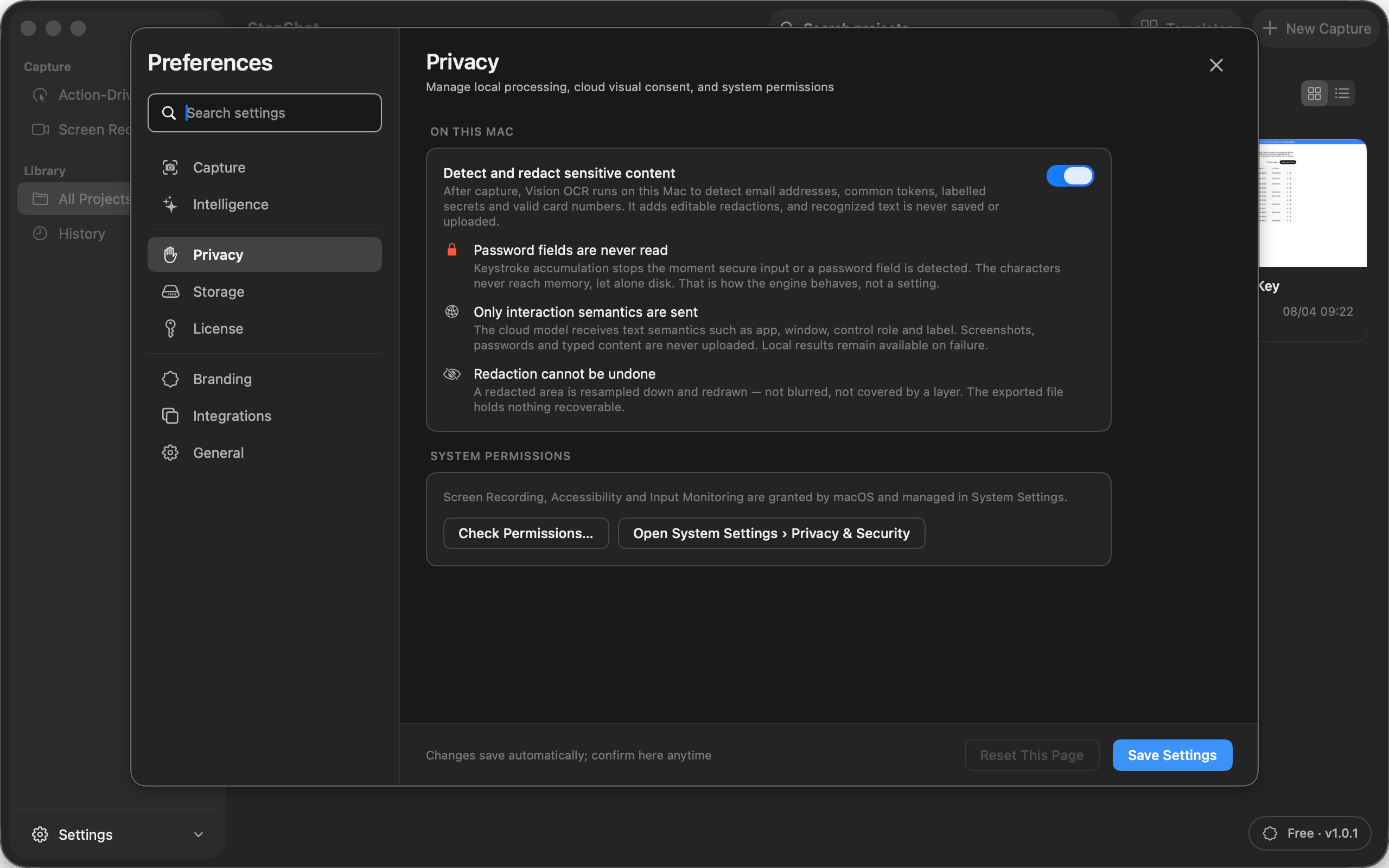
Use redaction when useful evidence and private material occupy the same frame. Check every suggested region and add anything the detector missed. Confirm that the rendered result actually obscures the sensitive pixels; a colored shape that can be removed later is not a substitute for irreversible redaction in the delivered image. Recheck after replacing an image, because the old placement may not cover the same content.
Inspect the exact deliverable
Open the final PDF, Markdown file and image folder, or HTML file in the form you will distribute. Review each image at readable size and search the text for identifiers that should not travel. Confirm that the selected export range matches what was approved, including the first and last step. If the destination is a knowledge base, check its audience and access settings separately from the document.
Keep an editable source for future corrections, but distribute only the reviewed output. When the workflow or its sample data changes, repeat the review instead of relying on an earlier approval. A guide is safe for a specific version, audience and destination, not for every future use.
Use StepShot with those boundaries in mind
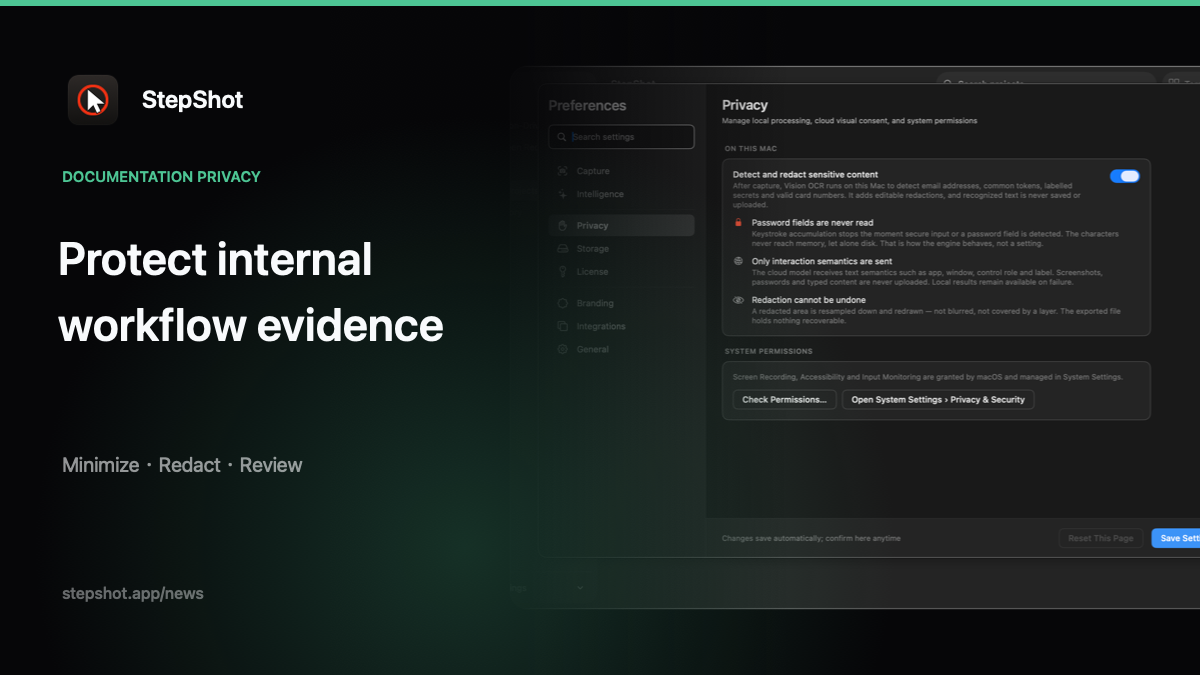
StepShot for macOS 14 and later offers active-window, full-screen and selected-region capture. Capture, editing and export work locally by default. Its local Vision OCR can suggest sensitive regions without saving or uploading recognized text, but authors must review candidates and the final file. The application does not read password characters.
Optional cloud optimization uses an endpoint configured by the user and sends text semantics by default. A separate, default-off consent can send up to four locally sanitized visual samples; do not enable it for a sensitive workflow without assessing that provider and the material involved. For the detailed controls, read the redaction guide, the privacy threat model and the StepShot features overview.