
Screenshot privacy · Aug 27, 2026
Screenshot privacy review before publishing SOPs
A screenshot can explain an action clearly while exposing far more than the learner needs. A useful privacy review treats every frame as publishable evidence, not harmless decoration.
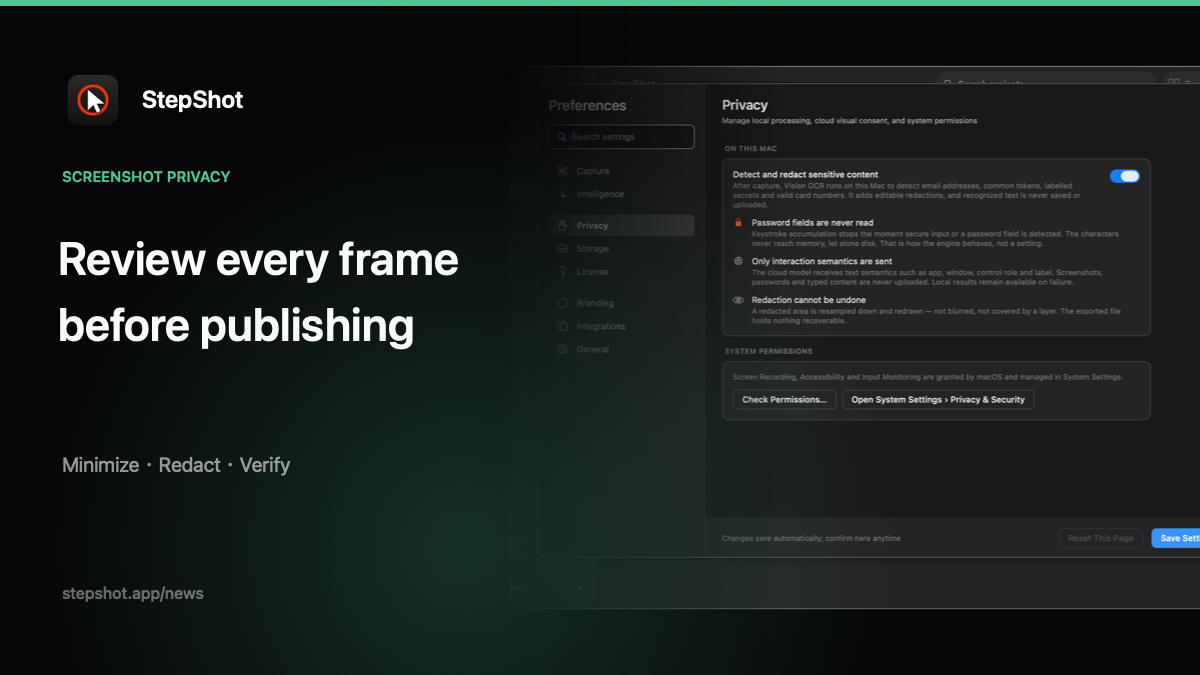
Start with the destination, not the redaction tool
Decide where the SOP will live and who should read it before recording the workflow. A public help page, a partner handoff and an internal runbook have different disclosure boundaries. Write down the intended audience, owner and approved destination so the reviewer has a concrete standard for every screenshot.
Then ask what visual evidence is actually required. A learner may need to see the selected menu and the resulting state, but not the account switcher, browser tabs, desktop notifications or unrelated records around them. Privacy improves when unnecessary material is never captured.
Prepare a low-risk capture state
Use representative test data when it preserves the real procedure. Close unrelated windows, clear notifications and remove customer names, email addresses, tokens, private URLs and internal identifiers from the visible workspace. Prefer an application window or fixed region over the full screen when the smaller target still proves the task.
Password handling is only one part of this check. A capture tool can avoid reading password characters while the surrounding screen still reveals a username, tenant name, recovery method or access level. Review the whole frame, including sidebars, menus and background content.
Inspect screenshots as a sequence
Review each step at normal reading size and at full resolution. Look for sensitive content in the main action area, then scan the edges, title bars, open menus and notifications. Compare adjacent frames too: information that looks incomplete in one screenshot may become identifiable when combined with another.
Remove duplicate or abandoned steps before redaction. Fewer necessary frames reduce review work and make the final procedure easier to maintain. Cropping can remove unrelated regions, but it is not a substitute for redacting sensitive information that remains necessary to explain the action.
Redact locally, then verify the result
Automated detection should produce candidates for human review, not a claim that every secret was found. Confirm each proposed region, add missing regions manually and make sure the treatment is burned into the exported pixels rather than left as a removable overlay. Recheck text, email addresses, tokens, card details and any organization-specific identifiers the detector may not recognize.
Verification must happen on the actual output. Open the exported PDF, Markdown images or HTML file and inspect representative pages at practical zoom levels. Confirm that sensitive pixels cannot be recovered, annotations do not reveal hidden context and small redacted regions remain covered after resizing.
Treat optional AI as a separate disclosure
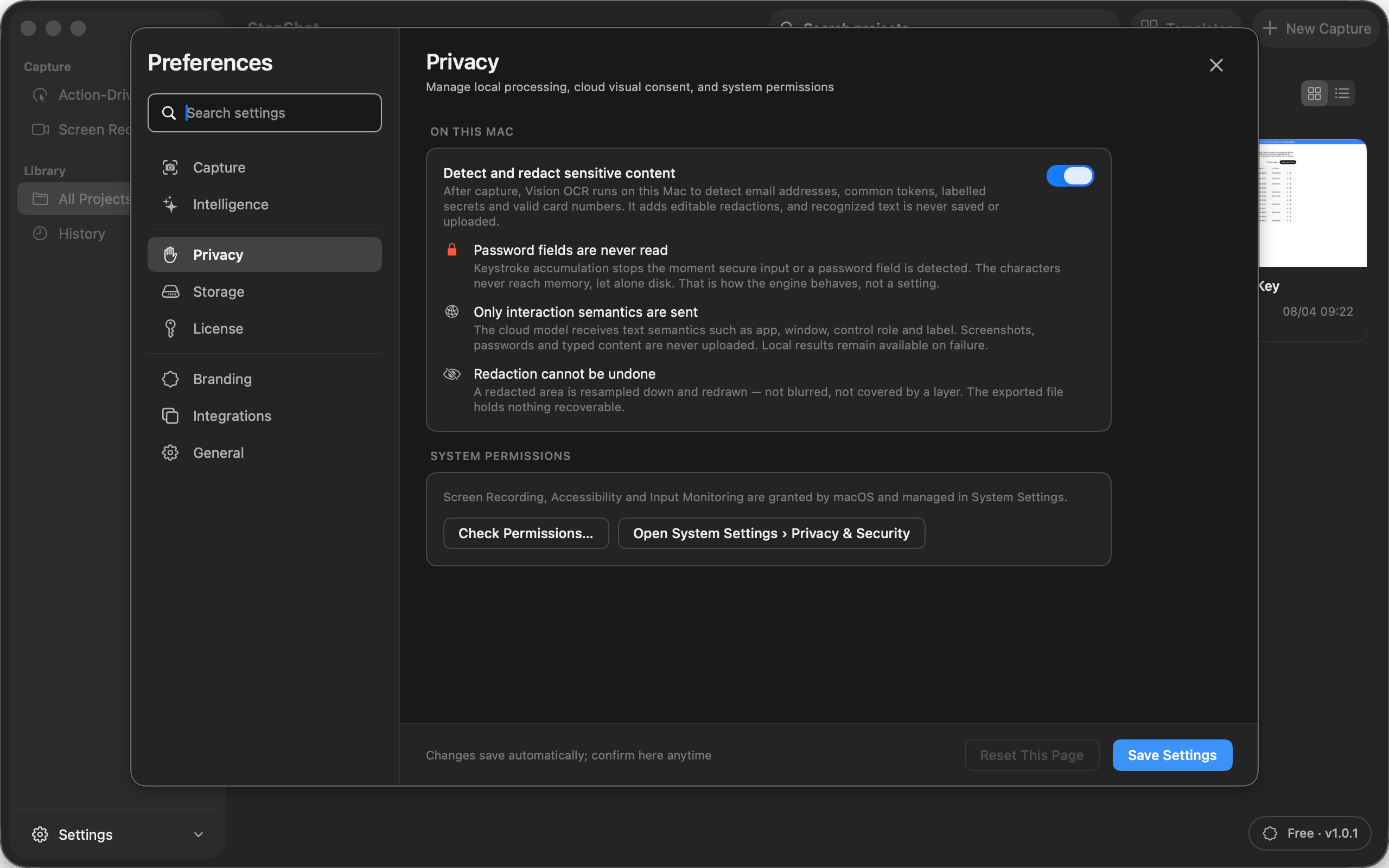
Do not assume that enabling writing assistance also requires image upload. Check the configured provider, the exact input and whether visual analysis has its own consent. If screenshots may be sent, confirm that selected samples are redacted and stripped of unnecessary metadata locally before transmission.
StepShot creates a complete local draft first. Its optional OpenAI-compatible planner uses text semantics by default. Sending up to four locally sanitized visual samples requires a separate, default-off setting, and a failed cloud request leaves the local draft intact.
Make publication a named approval
The author should record who reviewed the screenshots, which output was checked and when approval occurred. That small audit note prevents an editable project from being confused with the reviewed export. It also gives maintainers a clear reason to repeat the privacy check after the interface, sample data or audience changes.
StepShot for macOS 14 and later keeps capture, editing and export local by default. Local Vision OCR proposes redaction regions without saving or uploading recognized text, password characters are never read, and incomplete automatic-redaction review blocks export. Authors can then publish the same reviewed project as PDF, Markdown or self-contained HTML.
Build the review into the workflow
A dependable privacy process is simple to state: minimize before capture, inspect every frame, redact necessary evidence, verify the exported pixels and name the person approving publication. For more detail, read the StepShot redaction guide, compare the broader documentation privacy checklist, or review the complete feature set.