Screenshot privacy guide - Oct 29, 2026
Screenshot privacy: prepare notifications before capture
A clean tutorial begins before the first screenshot. A message banner, an unrelated browser tab or a background window can introduce information that has nothing to do with the procedure. Preparing the capture environment gives you fewer distractions to review later. It also makes the guide easier to follow because readers see the task you intended to explain, rather than the rest of your working day.
Inspect the whole capture area
Before recording, look at the area your chosen target will include. Check the application title, surrounding windows, menu bar and any visible side panels. A useful capture of a settings panel may not need an inbox, a recent-document list or a second monitor's contents. Choose a target that fits the actual procedure and verify its preview.
Do not assume that a small target is always sufficient. A task spanning applications may need a wider view, and a menu can extend beyond a carefully chosen region. Test the transition you plan to show. The goal is to include the necessary context deliberately while leaving unrelated information out, rather than discovering missing evidence after the recording ends.
Prepare notifications for the recording session
Review the notification settings available in your operating system and applications. Decide whether banners or message previews could appear during the task. Use an appropriate quiet mode when it fits your situation, then check how your own setup behaves. Do not treat one setting as proof that every application, account or device will remain silent.
If an interruption appears, pause and inspect what was captured before continuing. Avoid opening a private conversation just to dismiss a banner while recording. Resume only when the intended task is visible again. Record any retake you need instead of relying on memory to repair an instruction whose evidence has become unclear.
Remove unrelated context before it becomes source material
Close documents and tabs that the guide does not require. Check browser profiles, bookmarks, account names and recently used items when they are visible in the selected area. Use safe demonstration data for the procedure whenever you can. A realistic example does not require a real customer name, a private message or an operational credential.
Keep preparation proportional to the task. A guide to changing one setting needs enough surrounding context to identify the correct panel. It does not need your entire desktop history. If a title or sidebar exposes information you cannot safely show, consider a different demonstration environment or capture state before proceeding.
Check transitions as well as still images
Inspect the moments when you switch windows, open a chooser or wait for a result. These transitions can show a different set of information from the final screenshot. A file chooser might reveal names that are irrelevant to the instruction; a window switch might briefly expose another task. Review the material you actually retained, not just the images you expect to publish.
Keep source and output review separate. Removing a step from the finished guide does not establish that the corresponding information is absent from a recording or another copy. Before sharing source material with another author, decide whether they need it and review it for that audience. Send the approved guide when that is all the recipient needs.
Finish with a deliberate output review
After editing, open the exact file readers will receive. Look for unexpected names, message previews, window titles and background details as well as obvious secrets. Check that any redaction still covers the intended area and does not conceal a control the instruction depends on. If the evidence cannot be shared safely, recapture the step using suitable example data.
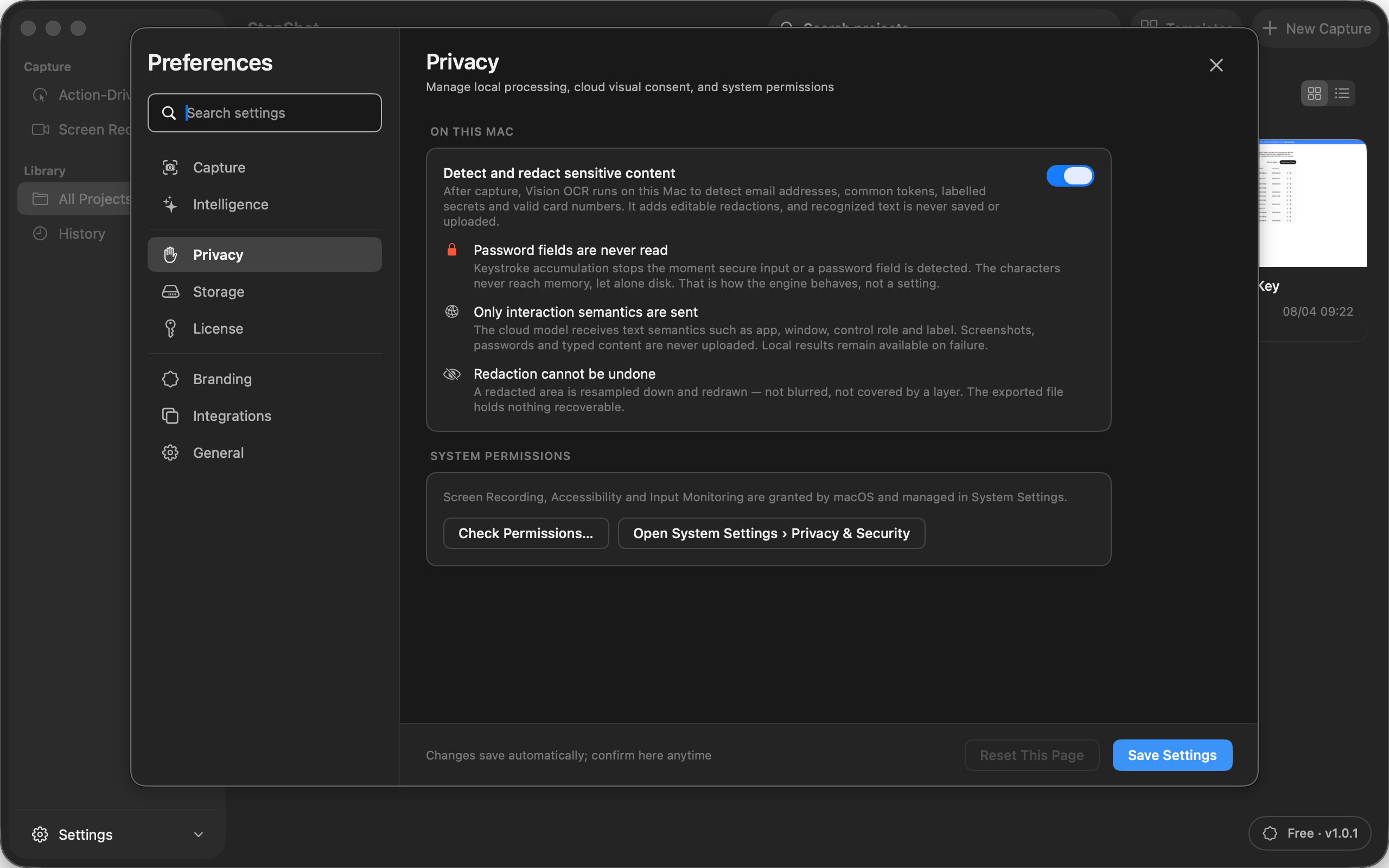
StepShot for macOS 14 and later provides capture targets and screenshot redaction tools. Its automatic redaction results require review, and authors still need to inspect content that detection may miss. Read the capture guide when choosing a recording area and the redaction guide before sharing the result. Capture preparation and final review work together: reduce unrelated material first, then verify the artifact you intend to distribute.