AI SOP writing guide - Oct 27, 2026
AI SOP generator: keep interface labels exact
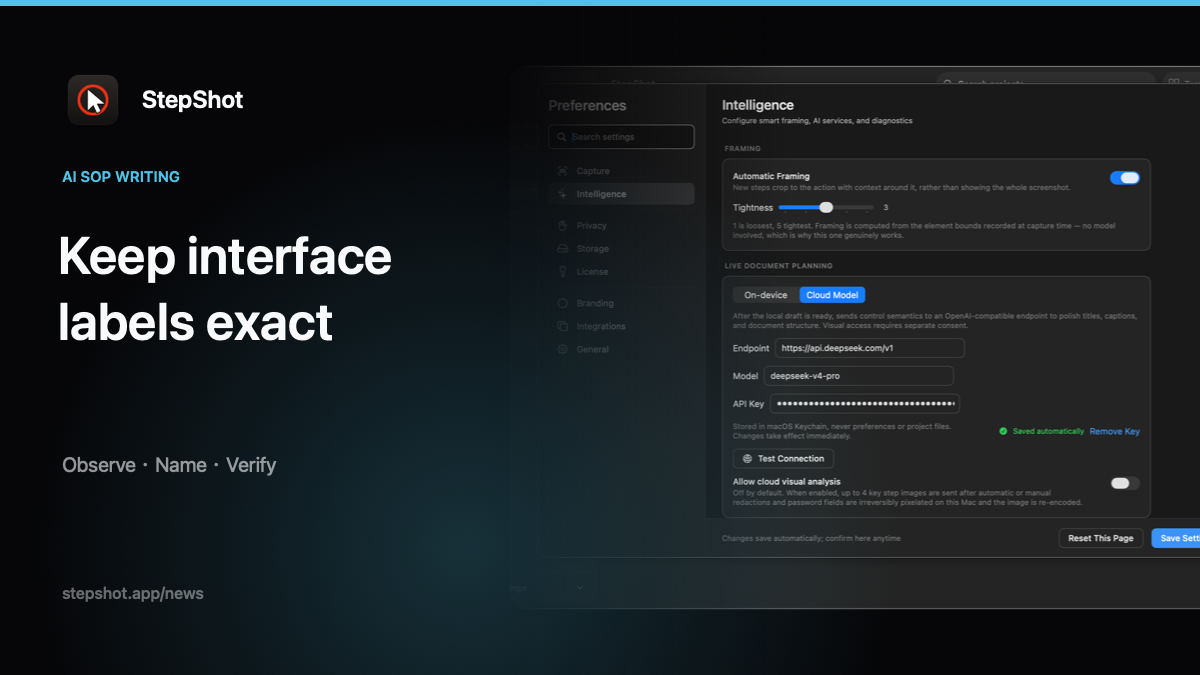
An AI SOP generator can help turn a captured workflow into readable instructions. During review, pay particular attention to the names of buttons, menus, tabs and fields. A smooth sentence is not enough if it asks readers to find a control with a different label. Keep the wording that identifies the interface anchored to the evidence, while using surrounding prose to explain the action.
Separate the instruction from the control name
Read each step as two parts: what the reader should do and how they can identify the target. The action can often be phrased more clearly without changing the target's name. If a hypothetical button says “Save draft,” an instruction to “publish the document” changes more than style. It suggests a different action and potentially a different result.
Keep the visible label in the instruction when it matters to finding the control. Use an explanation after it if the term is unfamiliar. Do not replace a short product label with a more natural synonym merely because the sentence sounds better. The guide should help a reader recognize the application they actually have open.
Check labels against a visible state
Compare the proposed text with the screenshot and the tested workflow. Look at the open panel, selected tab and menu state as well as the target itself. Two controls may share a label while appearing in different places. Add the relevant location in words when the label alone does not identify the action.
Keep the screenshot readable enough to support that check. A tight crop can remove the heading that explains where the reader is. An annotation can point to a target, but it should not hide the label you are asking someone to recognize. If the capture does not show enough evidence, revisit the application rather than filling the gap with a plausible name.
Handle icons and missing names deliberately
Some interfaces use an icon without a visible text label. Describe the observed location and appearance precisely, and confirm its function in the workflow you tested. If a tooltip is available, inspect it before deciding what to call the control. Avoid guessing from the icon alone or presenting a familiar convention as proof of what this application does.
When the evidence remains unclear, leave a review note and resolve the uncertainty before publication. A draft that identifies a missing label is useful to the author. A published instruction that invents one passes that uncertainty to the reader. Keep unverified explanations out of the final numbered sequence.
Keep language and version context consistent
State which interface language the procedure shows when that distinction matters. Translating the surrounding instructions does not establish the exact labels in another localized application. Check those labels in the corresponding interface before presenting them as authoritative. An English screenshot and a translated button name may need an explicit explanation to avoid confusing readers.
Apply the same care when the application changes. A renamed tab can make a previously correct instruction difficult to follow even if the underlying task still works. Review the text and screenshot together. Do not update the name in one place while leaving the other to describe an earlier version.
Review the final instruction as a reader
Walk through the guide from its stated starting point. For each consequential action, confirm that you can find the named control, perform the action and recognize the expected result. Check that a polished title has not turned a preparation step into a completion claim. Resolve mismatches before distributing the guide.
StepShot for macOS 14 and later creates a local draft and offers optional OpenAI-compatible cloud refinement. Authors can edit titles and descriptions and review suggested changes. These tools support the writing process; they do not replace checking the labels in the application being documented. See the capture guide for gathering the workflow evidence and the editor guide for refining steps and annotations. Keep exact interface terms where readers need them, then make the explanation around those terms clear.