
Guide maintenance · Sep 20, 2026
How to update a step-by-step guide without rewriting it
A small interface change should not force a complete rewrite. Find the affected path, replace stale evidence and test the joins around it.
Start with the change, not the document
When software changes, authors often choose between two expensive extremes: leave the old guide online or recreate every screenshot and sentence. A better update begins by identifying exactly what changed in the workflow.
Run the current task once before editing. Note the first point where the published guide and the live product disagree, then continue until they match again. That interval is the change boundary. It may contain one renamed button, several reordered screens or an entirely new decision branch.
Classify what became stale
Check three layers separately. The action layer covers clicks, typing, shortcuts and choices. The evidence layer covers screenshots, highlights and expected results. The context layer covers prerequisites, permissions, roles and business rules. A visual redesign may only require new images, while a changed permission model can invalidate the instructions even when the controls look identical.
Do not replace a screenshot merely because its colour or spacing changed if readers can still identify the action. Do replace it when labels, locations, states or visible results could send a reader down the wrong path.
Capture the smallest complete replacement
Reproduce the workflow from a known starting state and capture the changed section through its first stable result. The replacement must be complete enough to stand on its own. Starting halfway through a dialog can hide a prerequisite; stopping immediately after a click can omit the confirmation a reader needs.
Preserve useful evidence around the changed section. Existing steps that still describe the live product do not become less trustworthy because a later screen changed.
Repair the joins between old and new steps
The highest-risk errors often sit at the boundary. Read the last retained step and the first replacement step as a pair. Does the first leave the interface in the state the second expects? Then check the final replacement step against the next retained instruction.
Update numbering, cross-references and headings after inserting or removing steps. If a branch disappeared, remove recovery advice that only applied to that branch. If the new path adds a permission prompt, document both the expected approval and what a reader should do when access is denied.
Review privacy again
A maintenance capture can expose different data from the original run. Accounts age, notifications arrive and test environments accumulate realistic records. Inspect every new image for names, email addresses, internal URLs, tokens and unrelated windows. Confirm redaction in the exported pixels, not only in the editor.
Test the guide as a reader
Use a clean starting state when possible and follow the revised guide without relying on memory. Verify that each action has enough context, every stated result appears and the final outcome is still the one the guide promises. A second reviewer is especially useful when the author already knows the new interface.
Record the review date, owner and reason for the update. Those three facts make the next maintenance pass faster without pretending that a date alone proves the procedure is current.
Update a captured guide in StepShot
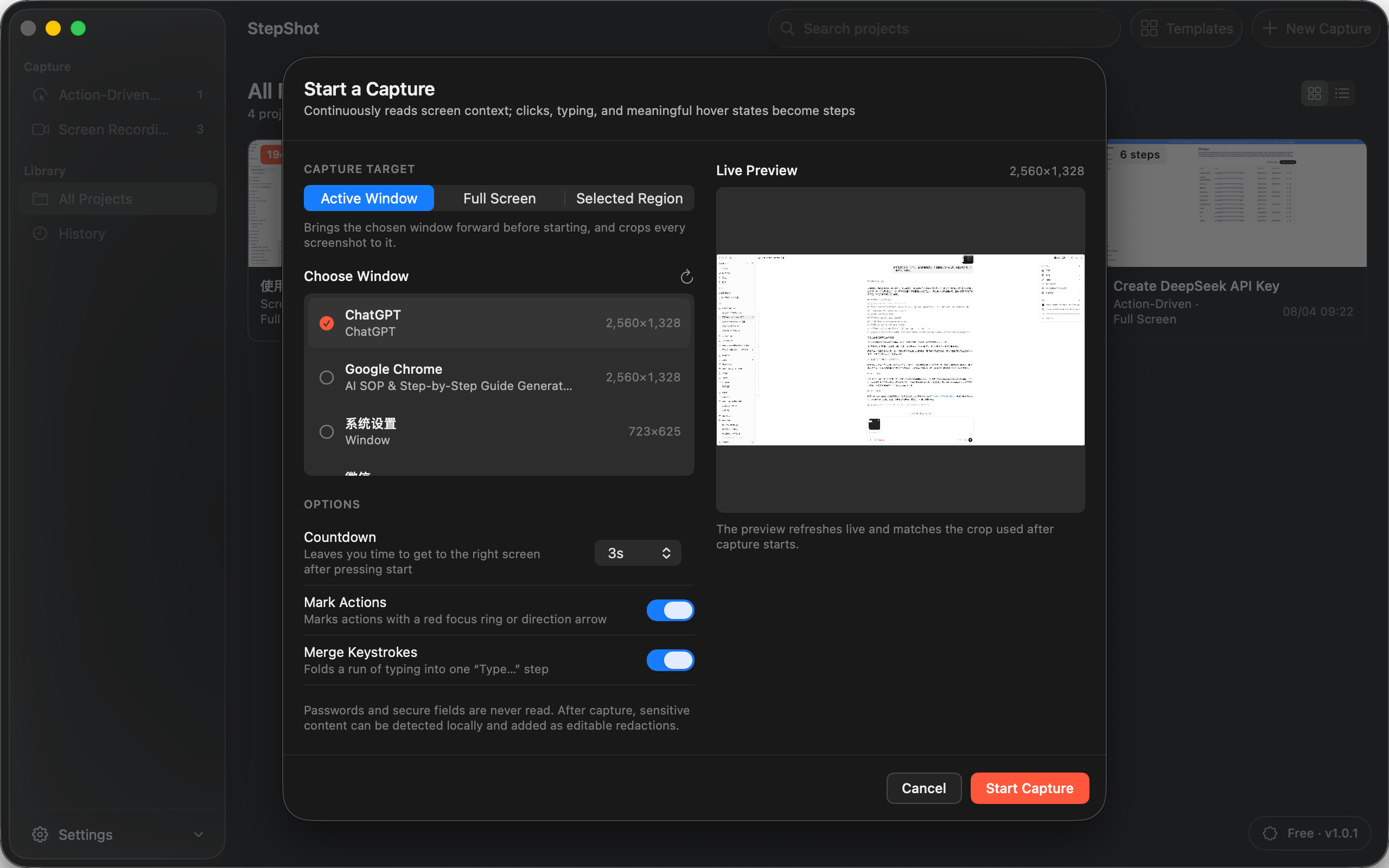
StepShot for macOS 14 and later keeps captured steps editable. Authors can reorder, merge, duplicate, skip or delete steps, insert notes and headings, and use recorded video frames to add, replace or split a step. The editor and all exporters share the same rendering path, so crops, annotations and confirmed redactions remain aligned with the output.
Capture and editing stay local by default. Optional cloud optimization uses an OpenAI-compatible endpoint configured by the user, sends text semantics by default and keeps the local draft when a request fails. Visual samples require separate consent and are sanitized locally first.
Review the editor guide for step repair tools, use the redaction checklist before sharing, and compare export options on the features page. StepShot exports PDF, Markdown and self-contained HTML. Free users can capture and edit without a time limit and export the first 10 captured steps; PDF and custom branding require a paid licence.