SOP export guide - Nov 6, 2026
SOP export: share one step as a support answer
A support reply often needs one illustrated action, even when the source tutorial explains a much larger procedure. Exporting the current step can give the reader a focused answer without asking them to search through the entire guide. Before sharing that excerpt, make sure it carries enough context to stand alone and that the selected action actually addresses the question.
Choose a step that answers a complete question
Identify the decision the reader is trying to make. They may need to locate a control, recognize a confirmation or check a setting before proceeding. Choose a step that explains that decision. If the answer depends on several actions or a branch the reader has not yet reached, a longer guide may be more useful than an isolated screenshot.
Read the selected instruction without its neighbors. References such as “the file above” or “return to the previous screen” may no longer make sense. Identify the application, panel or item directly. If the prerequisite is substantial, point the reader to the full procedure rather than pretending that one excerpt contains everything they need.
Keep enough interface context
Check that the screenshot shows the relevant control and enough surrounding detail to place it. A tightly cropped button can be difficult to recognize when the same label appears elsewhere. Preserve a panel heading or another useful landmark, and use the description to explain the action and the result the reader should expect.
Choose the evidence for this particular answer. A screenshot that shows where to click may not show whether the operation completed. If the support question is about a result, use a step that depicts the relevant state and explain how to recognize it. Do not infer completion from the presence of a button alone.
Check scope and format before writing the file
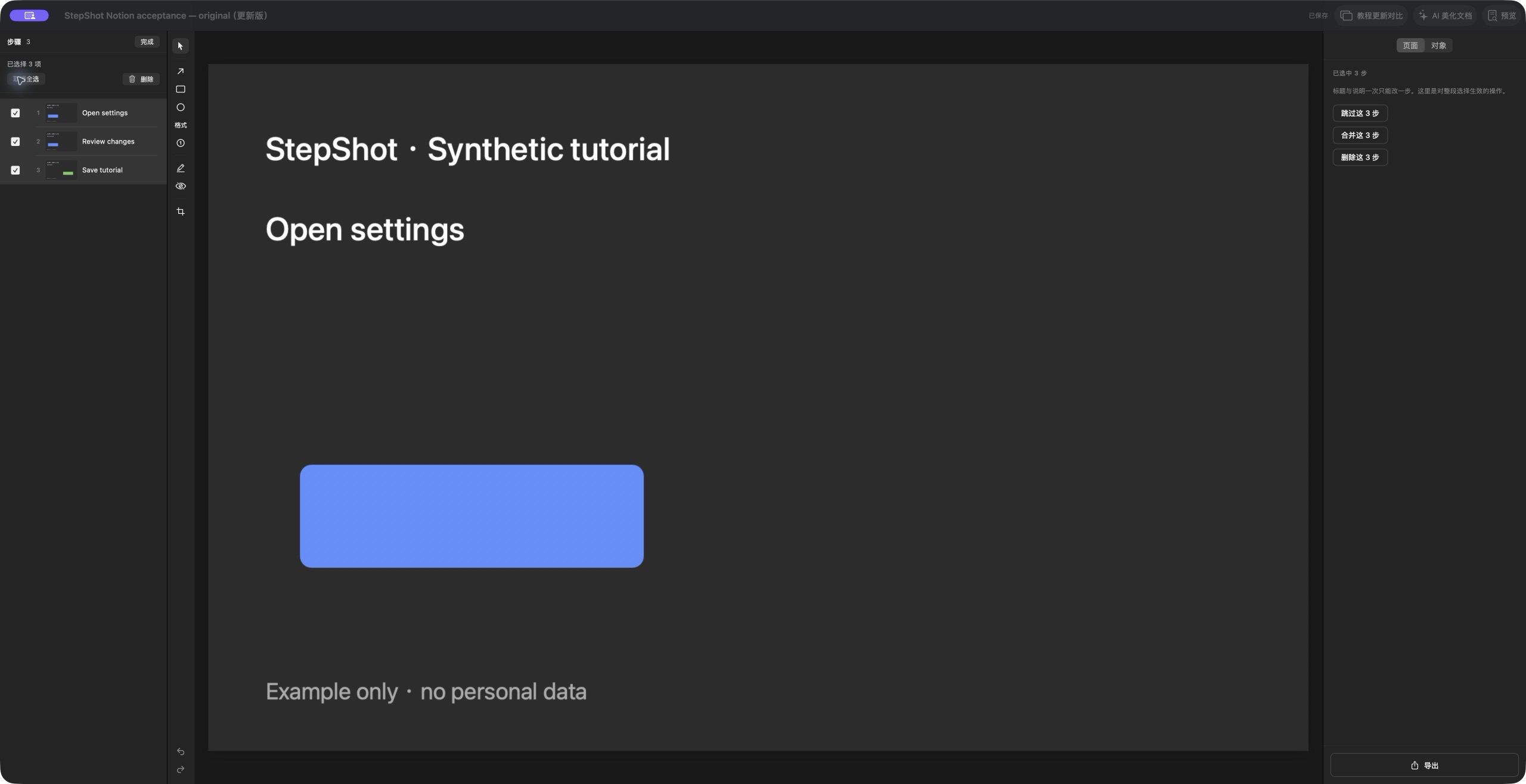
In StepShot for macOS, the export panel lets you choose between the eligible sequence and the current step. Select the intended step in the editor, then confirm the export scope. A skipped step is not part of the published sequence. The current-step option does not bypass licensing: the free Markdown and HTML limit still applies to the first ten captured steps, and PDF export requires Pro or Team.
Choose a format the recipient can use. StepShot's HTML export keeps the document and images in one file; Markdown has a companion image directory. If you use Markdown, keep its images with the document or follow the destination's supported import process. Open the result as the recipient will, rather than relying only on the preview in your editor.
Review the excerpt for the audience receiving it
A shorter export can still include information that should stay internal. Review the image, title and description for unnecessary identifiers or private example values. Resolve any automatic redaction reviews required for the selected scope. If the image cannot be made suitable without hiding the control readers need, capture a safer example.
Keep the edited source and the shared answer distinct. Selecting one step limits the intended guide output; it does not sanitize the rest of the project or recording. Share the reviewed artifact rather than the source project unless the recipient needs to continue editing and is authorized to receive the underlying material.
Verify the answer after export
Open the exact file you intend to attach or publish. Confirm it contains the intended action, that its image loads and that the wording is understandable without the rest of the tutorial. Check any referenced guide or prerequisite. If the reader needs more context than the excerpt can provide, give them the complete reviewed procedure instead.
StepShot's editor guide explains how to refine individual steps and screenshots. The export guide describes format behavior and limits. Use a single-step export when the question is narrow, then verify that the delivered answer supplies the action, evidence and context the recipient needs.