
AI privacy guide · Sep 3, 2026
How to keep workflow screenshots private during AI review
Visual context can help an AI understand a software workflow, but every screenshot can also carry names, records and credentials that the model never needed. Treat images as an explicit exception, not a default input.
Decide whether the model needs an image
Start with the smallest useful input. A step title, application name, control label and action type may provide enough context to improve wording or group related actions. If text semantics answer the question, do not attach a screenshot simply because one is available.
Ask what the image would prove that the text cannot. Visual context may help when two controls share a label, when layout matters to the instruction, or when the result is visible but difficult to describe. A vague hope that an image will make the answer better is not a privacy decision.
Choose representative samples, not the whole workflow
When images are justified, select only the steps needed for the review. A long workflow can expose unrelated browser tabs, customer records, filenames, notifications and account details across dozens of frames. More images also create more material for a reviewer to inspect before transmission.
Prefer a small representative set that covers the uncertain part of the task. Remove duplicate states and images that only confirm routine navigation. Keep the source project local so a rejected suggestion or failed request does not force you to reconstruct the workflow.
Reduce the frame before redacting it
Crop away content that is not required to understand the action. Excluding a sidebar, another window or a row of records is stronger than placing masks over every value inside it. Then inspect the remaining frame for email addresses, names, tokens, payment details, internal URLs and identifiers that reveal more than the instruction needs.
Use local detection as an aid, not as proof. Optical recognition can miss unfamiliar formats or select too little of a sensitive value. Add manual masks where needed, expand them when surrounding context can reveal the original, and review images with no automatic findings. Password and secure-input characters should never be captured as readable content.
Verify the sanitized pixels
A visual overlay is not enough if the original remains recoverable underneath it. Confirm that redaction is applied to the pixels in the sanitized sample. Check thumbnails and previews as well as the large image, because a smaller derivative can accidentally come from an earlier, unredacted version.
Review the exact samples that will be sent rather than relying on the full-size source in the editor. Zoom in, check every edge of each mask and look for information disclosed by context, such as a visible account avatar beside a hidden name.
Make the cloud boundary visible
Before enabling visual analysis, identify the configured provider and endpoint, the type and number of images being sent, and the provider terms that apply to retention and access. A user-supplied endpoint gives the operator a choice of service; it does not make every service equivalent or private by definition.
Keep text-only and visual processing as separate decisions. Teams that cannot send screenshots to a model should be able to leave visual input off while still completing the documentation workflow. If policy allows selected images, record who approved the exception and why those samples were necessary.
Review the response against local evidence
Sanitizing an image protects input data, but it does not validate the model's output. Compare every proposed title, instruction and structural change with the recorded action and local screenshot. Reject added clicks, prerequisites or results that were not observed. A fluent description can still be operationally wrong.
Inspect the finished document before publishing. Redact the exported PDF, Markdown images or self-contained HTML output independently of any samples prepared for AI review, because the final audience and the model are different disclosure boundaries.
How StepShot separates local work from optional AI
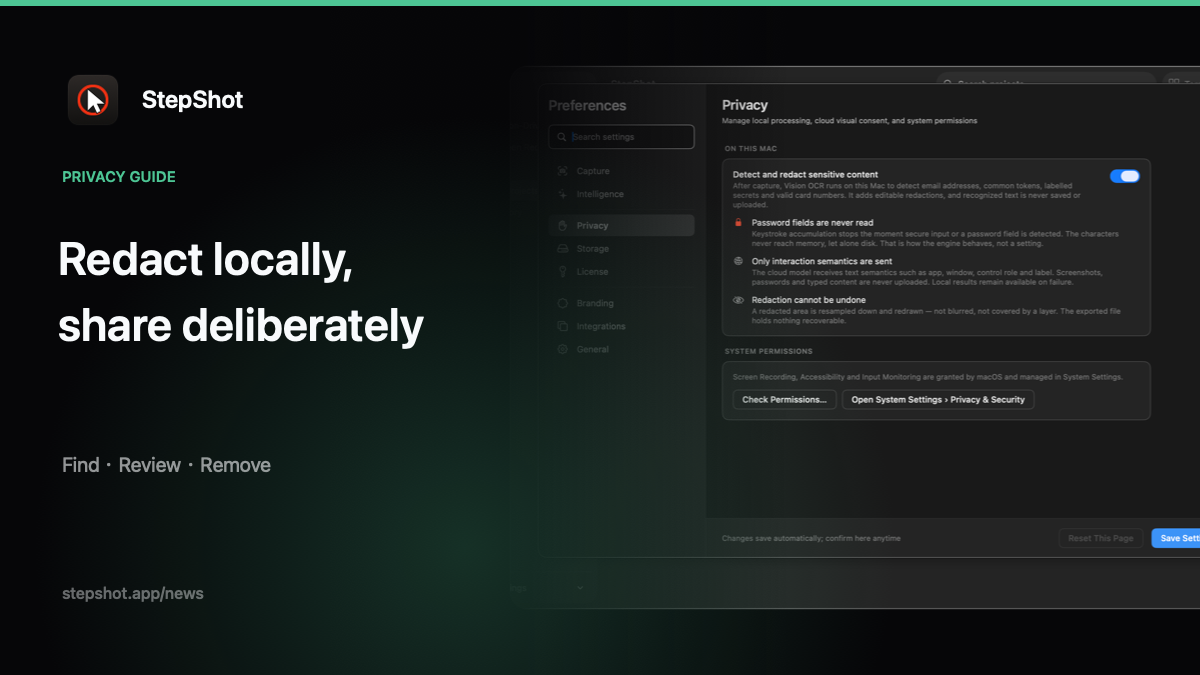
StepShot for macOS 14 and later captures, plans, edits and exports a complete draft locally. Its optional OpenAI-compatible planner uses a user-provided endpoint and sends text semantics by default. Visual samples require a separate, default-off consent; StepShot limits them to four and sanitizes them locally before transmission. If the cloud request fails, the local draft remains available.
On-device Vision OCR can propose masks for likely sensitive information without saving or uploading the recognized text. Authors must review those candidates before export or sharing can continue, and manual pixelation masks remain available. The same rendering path applies approved edits to PDF, Markdown and self-contained HTML output.
See the redaction guide for the review workflow, the feature overview for current AI and privacy boundaries, and the export documentation for checking the final artifact.
A practical approval gate
Before sending any workflow screenshot for AI review, confirm that the image is necessary, the sample set is minimal, sensitive pixels were removed locally, the provider boundary is acceptable and the response will be checked against real evidence. If one answer is unclear, keep the image local and continue with text-only review.