PDF SOP guide - Oct 23, 2026
PDF SOPs: make screenshot detail readable on paper
A screenshot can look clear in a large editor window and become difficult to read when it shares a printed page with several other steps. For a PDF SOP, the useful question is whether a reader can identify the control, value and result at the size they will actually use. Review that size before distributing the document, especially when a procedure depends on small labels or similar-looking buttons.
Choose the page before polishing the screenshot
Start with the intended paper size and reading situation. A desk reference printed on A4 or Letter has a fixed physical space. A PDF opened beside the working application may have much less screen space than your editing window. Choose the layout for that destination, then judge the screenshot inside it. A full-screen image that requires constant zooming may need a different crop or a separate step.
In StepShot, PDF export offers A4 and Letter paper options and compact or one-step-per-page layouts. Compact pages can suit short instructions with simple images. Give a detailed screenshot more room when the reader must distinguish a field label, a selected option or a confirmation message. Page count is a tradeoff to review, rather than a target to minimize at any cost.
Crop around the decision, keeping enough context
Look at what the reader must recognize in each step. A screenshot of an entire desktop may contain very little useful detail when reduced to the width of a page. Remove unrelated space while retaining landmarks that explain which window or panel is open. Keep the relevant field label alongside its value, and preserve the surrounding heading when similarly named controls appear elsewhere.
Compare the crop with the instruction. If the text says to open a menu, show the menu in the state the reader needs. If a step checks the outcome, include the visible confirmation. Cropping makes existing detail occupy more of the page; it cannot recover detail that was missing from the captured image. Recapture a clearer state when the evidence is insufficient.
Use annotations that survive the final scale
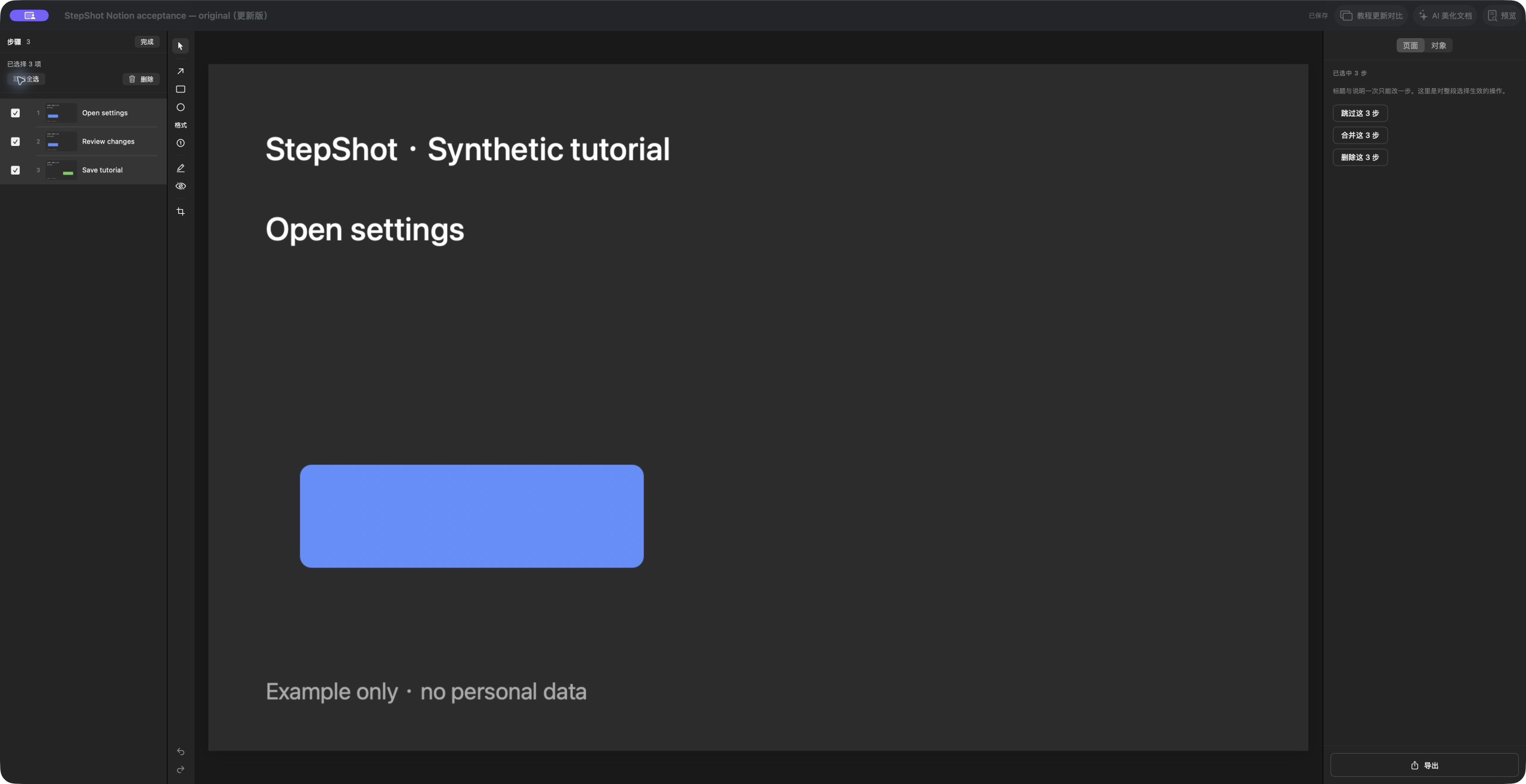
Add a focused annotation where it resolves a real ambiguity. A box around the target or a short arrow can guide attention without covering the label. Check whether the mark still points to the correct control after cropping. Several overlapping marks can turn one screenshot into a puzzle, so consider splitting the instruction when there are multiple independent decisions.
Keep essential instructions in the written step as well. Do not make the reader infer an action solely from a colored outline. Name the control and describe the expected result in plain language. When the output is likely to be printed in grayscale, inspect a grayscale sample and check whether the explanation still works without the annotation color.
Inspect the exported file at its intended size
StepShot's PDF preview and export use the same PDF generator. Use the preview to compare layout choices, then open the actual exported file before sharing it. Inspect a representative detailed page and one compact page. Check small text, screenshot edges, page breaks, headings and any footer information. Confirm that the important action and its evidence remain easy to connect.
For printed distribution, print a sample using the paper and scaling settings readers will use. For screen use, open the PDF at a comfortable reading size beside the application. These are practical acceptance checks, not a promise that every printer or viewer will render identically. If a reader must repeatedly enlarge an image to find the target, revise the crop, layout or step sequence.
Keep a reproducible final check
Record the paper size, layout and image-quality choice with your publishing notes. After changing an image or instruction, export again and review the new file. Check that the file you distribute is the reviewed version, and remove sensitive information before it reaches the reader. Higher export quality is useful to compare, but it does not repair an unreadable source screenshot.
StepShot for macOS 14 and later provides screenshot cropping and annotations in its editor; PDF export requires a paid Pro or Team license. Read the editor guide for preparing individual steps and the export guide for PDF layout controls. The goal is a guide whose instructions and evidence remain usable in the reader's hands, at the size they actually receive.